Windows 10.. a bit old isn’t it?
Still rocking Windows 10 while everyone’s jumping to Windows 11? You’re not alone.
This OS is getting older, and Microsoft’s pulling the plug on support this October. But here’s the thing - it’s not really about the age. Plenty of people stick with Windows 10 because some programs just work better on it than Win 11.
Maybe you prefer Windows 10 because it’s lighter, more familiar, or you’ve got that one crucial software that refuses to cooperate on Win 11. Whatever your reason, you need it - but do you actually know how to get it or install it properly?
I’ll walk you through the whole process step by step. Grab a coffee and let’s make this happen.
Quick Heads Up!
In this tutorial, I’ll be using a VM inside VirtualBox for the demo, so the initial setup will look different from installing on a real device. That’s why I’m giving you two different approaches—pick the one that fits your situation!
Let’s Get Started - First Setup
Installing on Your Actual Computer/Laptop
What you’ll need:
- Your target device: Computer/Laptop with at least 8GB RAM and 512GB storage (SSD recommended)
- Rufus software: Tool for creating bootable USBs
- Windows 10 ISO file: The actual Windows installer that you can get here
- Empty USB drive: At least 8GB (everything on it will be wiped)
- Another computer: To create the bootable USB if your main one is the target
Creating Your Bootable USB
Here’s the process:
-
Get Rufus Ready
- Head over to rufus.ie and download it
- No installation needed—just run it directly!
-
Prep Your USB Drive
- Plug in the USB drive
- Warning: Everything on this USB will be erased, so back up anything important
-
Configure Rufus
- Run Rufus as Administrator (right-click → “Run as administrator”)
- Device: Select your USB from the dropdown
- Boot selection: Click “SELECT” and find your Windows 10 ISO
- Image option: Keep it as “Standard Windows installation”
- Partition scheme: Use “GPT” for modern systems
- Target system: Choose “UEFI (non CSM)”
- File system: NTFS
-
Start the Process
- Hit “START” and confirm the warning
- This usually takes 5-15 minutes
- Safely eject when it’s done
BIOS Setup
Configure your computer to boot from USB:
-
Access BIOS
- Restart your computer
- Press the BIOS key during startup (usually F2, F12, Delete, or Esc)
- Watch for boot messages - they tell you which key to press
-
Configure Settings
- Find the “Boot” section
- Disable Secure Boot: Security → Secure Boot Control → Disabled
- Enable USB Boot: Make sure USB devices can boot
- Set Boot Priority: Move USB to the top of the list
- Alternative: Use the Boot Menu (F11/F12) when starting up
-
Save Changes
- Press F10 or find “Save & Exit”
- Confirm your changes and restart
- Your computer should now boot from USB
VirtualBox VM
What you’ll need:
- Host computer: 8GB RAM, 512GB storage, decent CPU
- VirtualBox: Download from virtualbox.org
- Windows 10 ISO: Same file as above
Setting Up Your Virtual Machine
Creating the VM:
-
Make a New VM
- Open VirtualBox, click “New”
- Name: “Windows 10” (or whatever makes you happy)
- Type: Microsoft Windows
- Version: Windows 10 (64-bit)
-
Give It Some Juice
- CPU: 2 cores minimum, 4 is sweet
- RAM: 4GB minimum, 6-8GB if you can spare it
- Storage: 50GB minimum, 80GB+ recommended
- Network: NAT or Bridged for internet access
-
Mount That ISO
- VM Settings → Storage
- Click the CD icon, select your ISO
- Make sure it’s the primary boot device
The Main Event - Windows 10 Installation
Starting the Installation
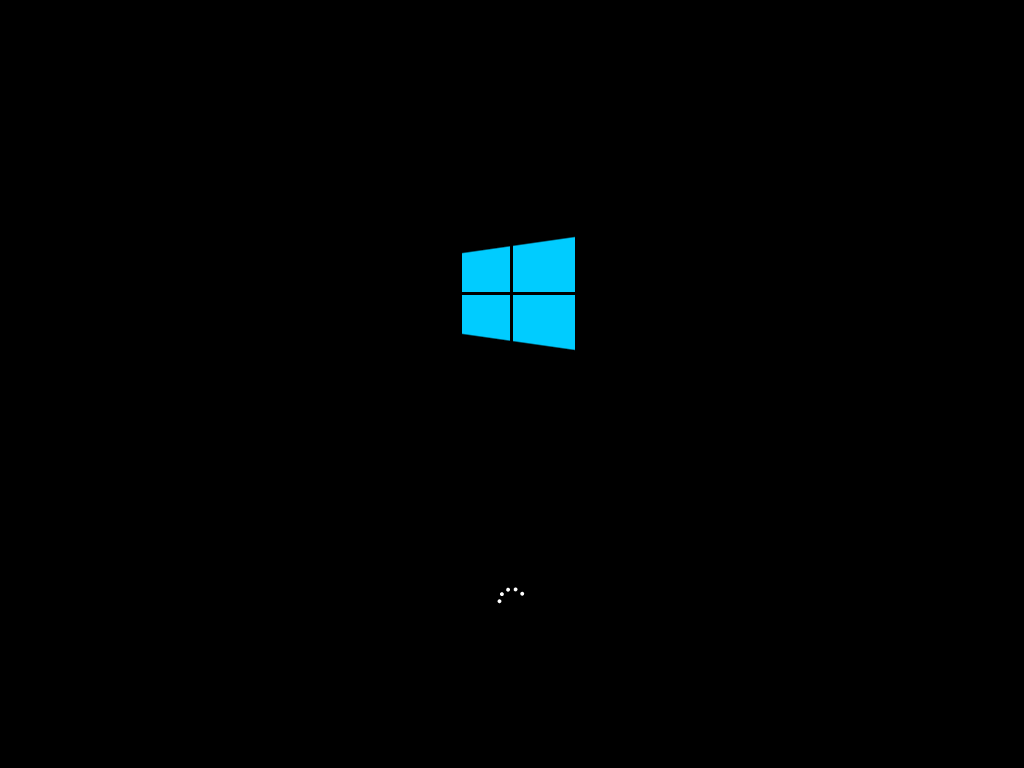
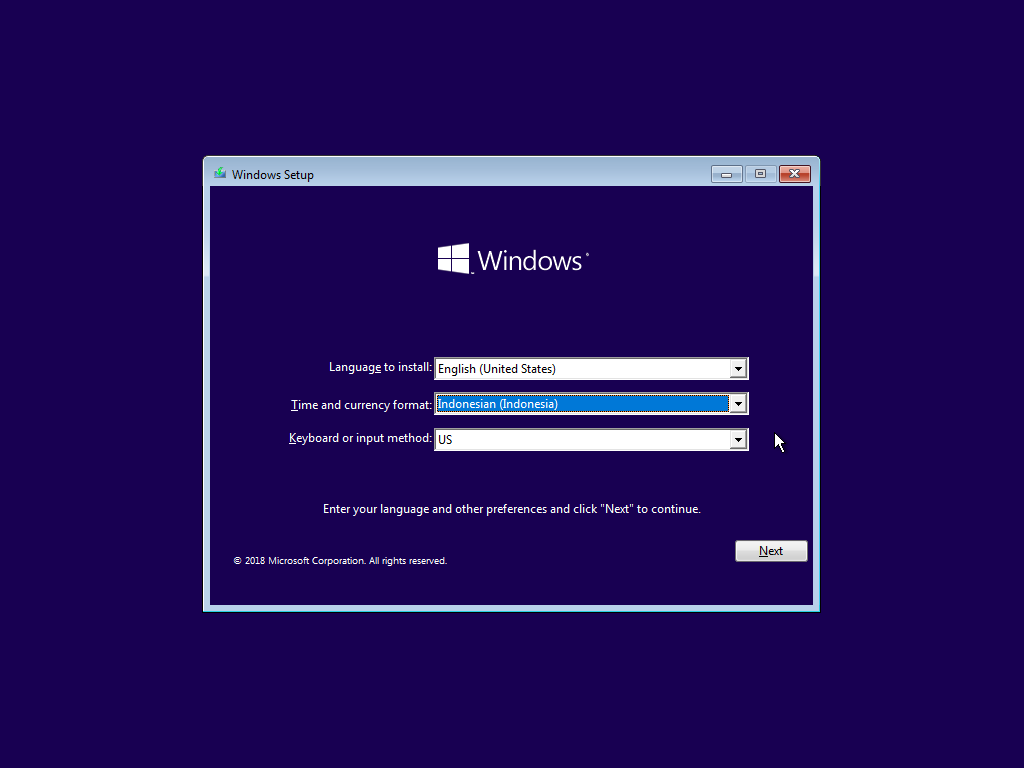
After the boot screen loads, you’ll see the Language, Time & Currency, and Keyboard setup. Pick whatever matches your region.
Begin Installation
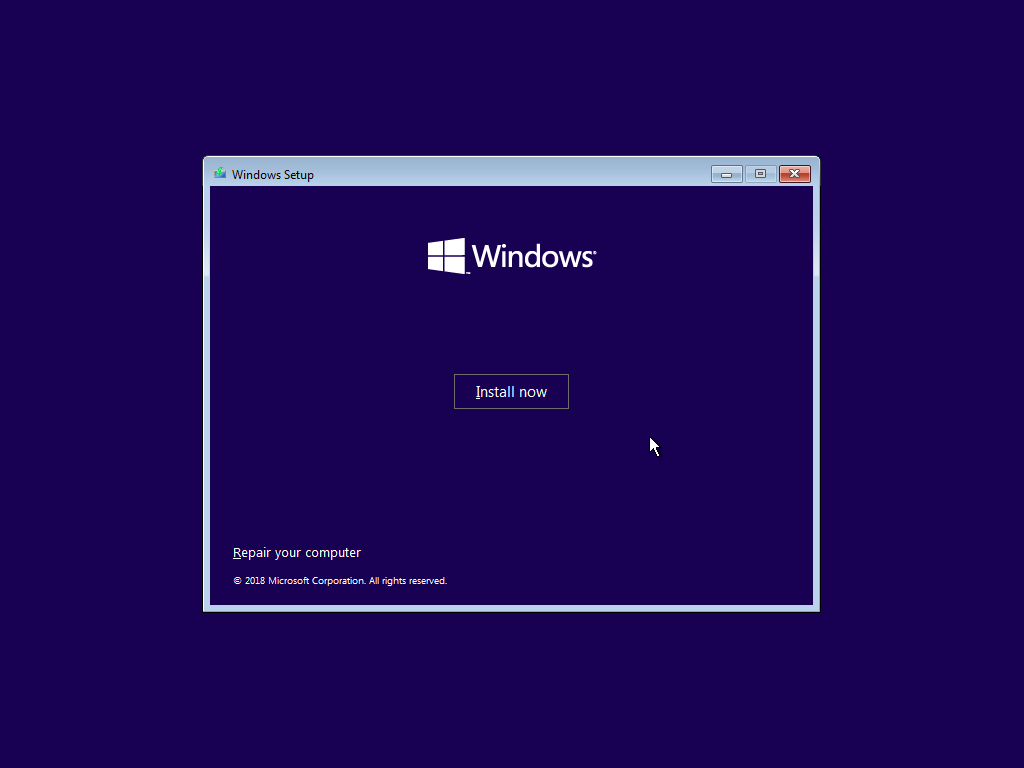
Click “Next” and you’ll see the install screen. Hit “Install Now” to continue.
Product Key
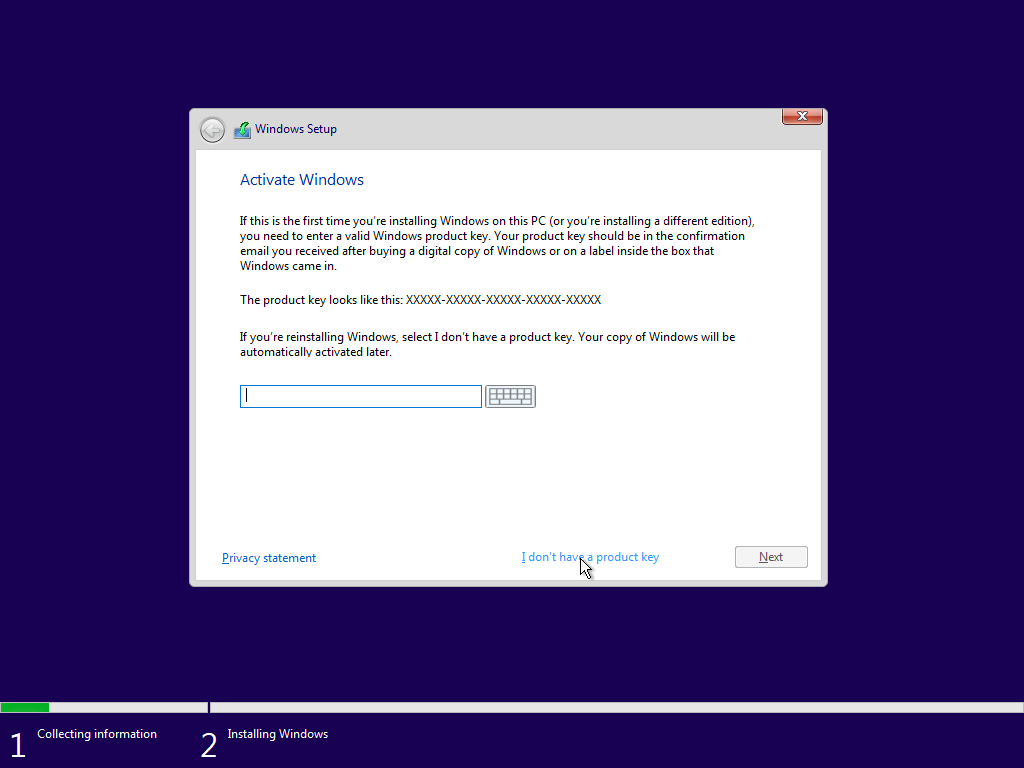
When the activation window appears, choose “I don’t have a product key.” We’ll handle activation later.
Select Windows Edition
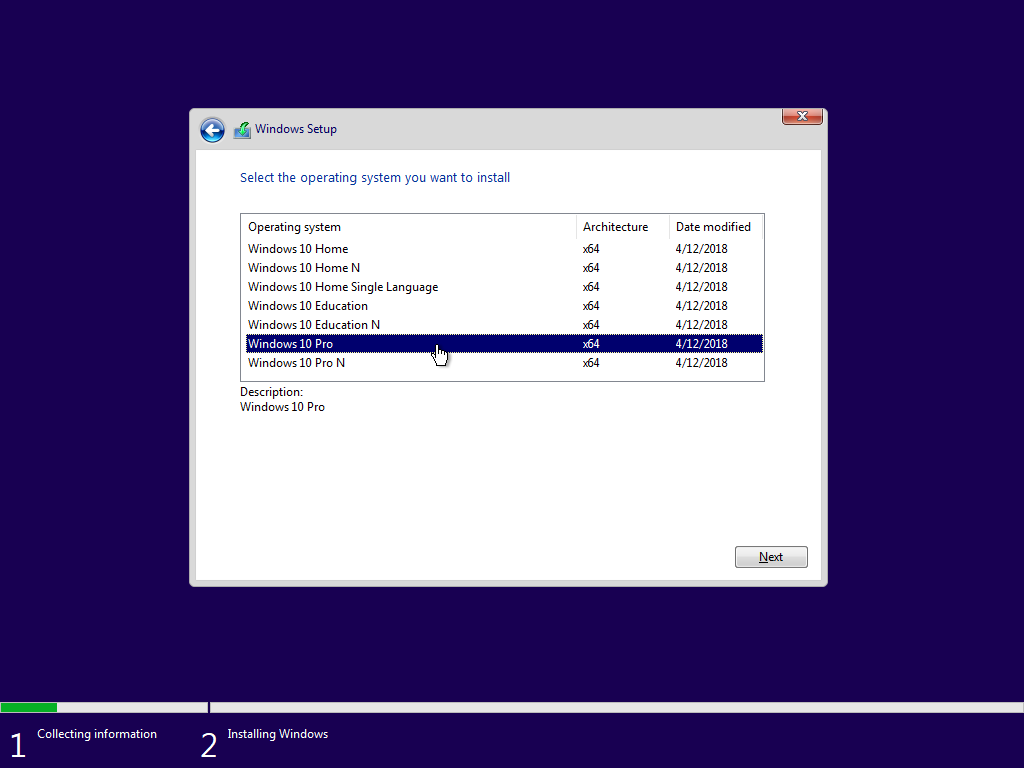
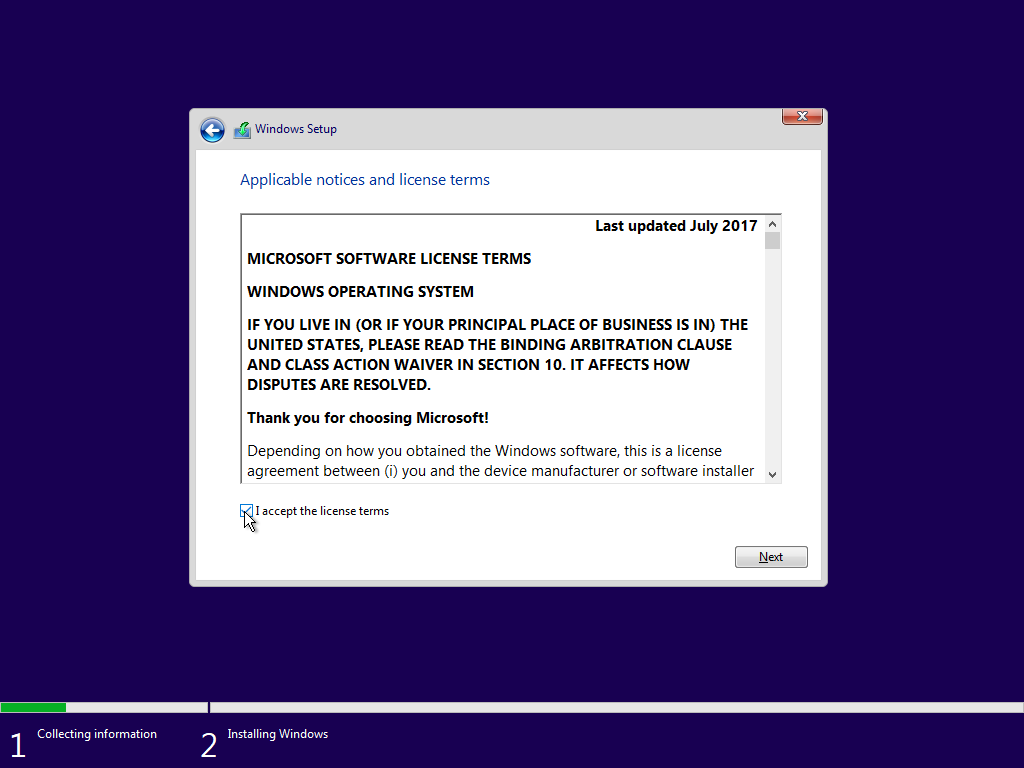
At the OS selection screen, choose Windows 10 Pro for full features. Click “Next” and accept the license terms.
Storage Configuration
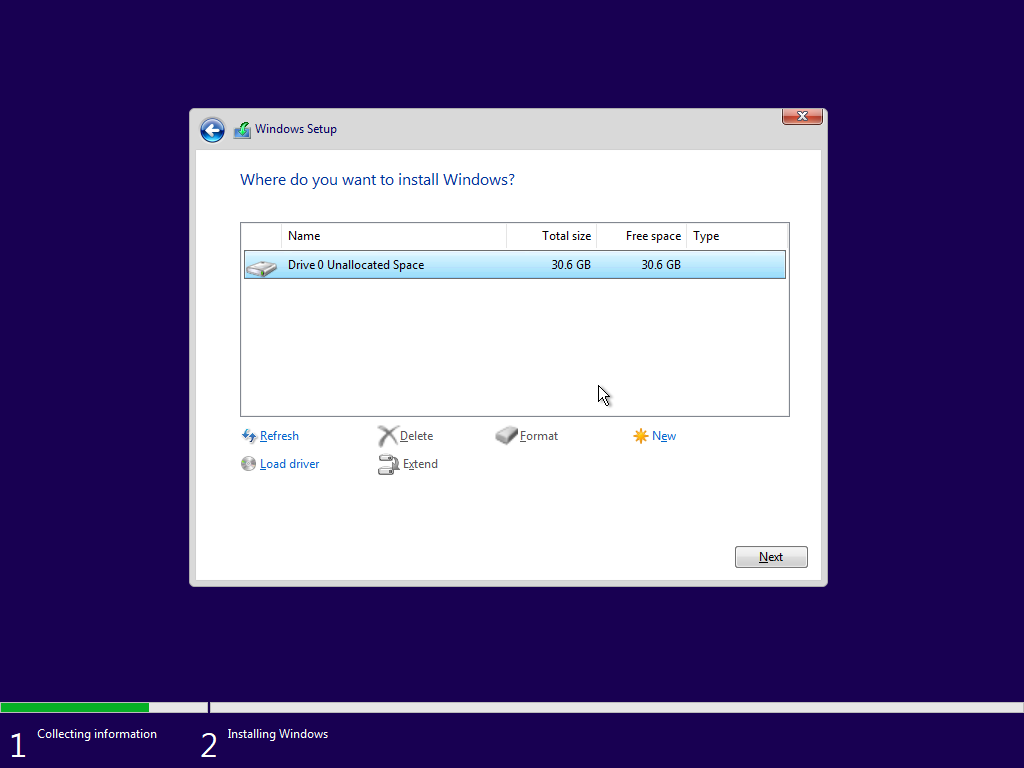
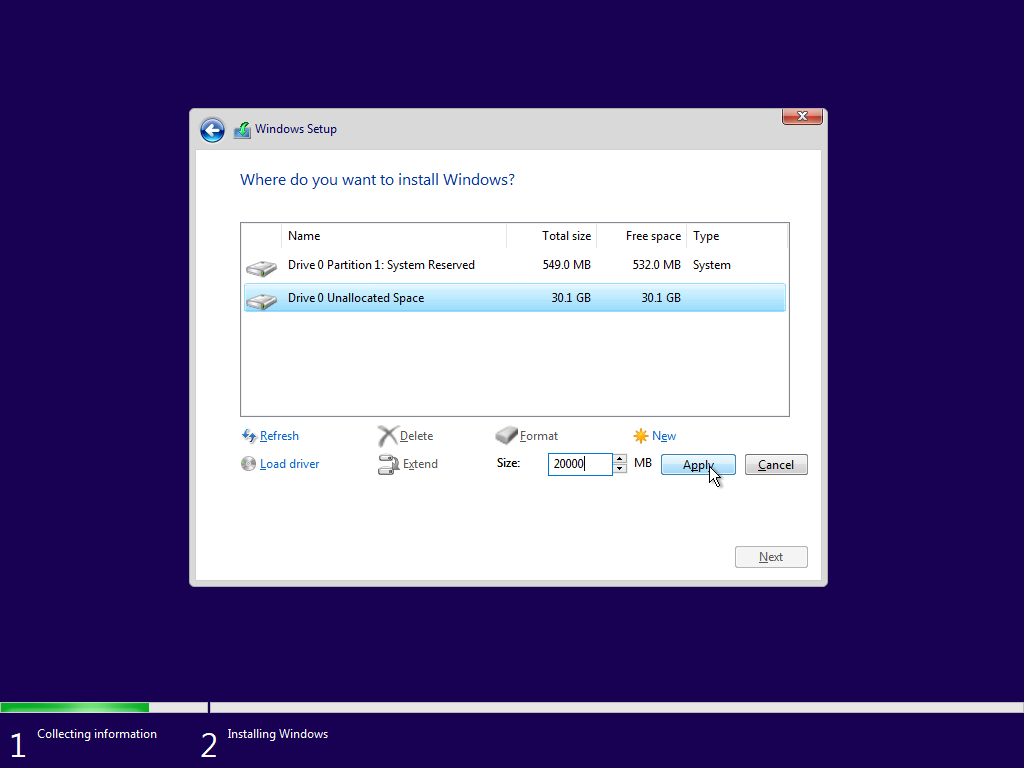
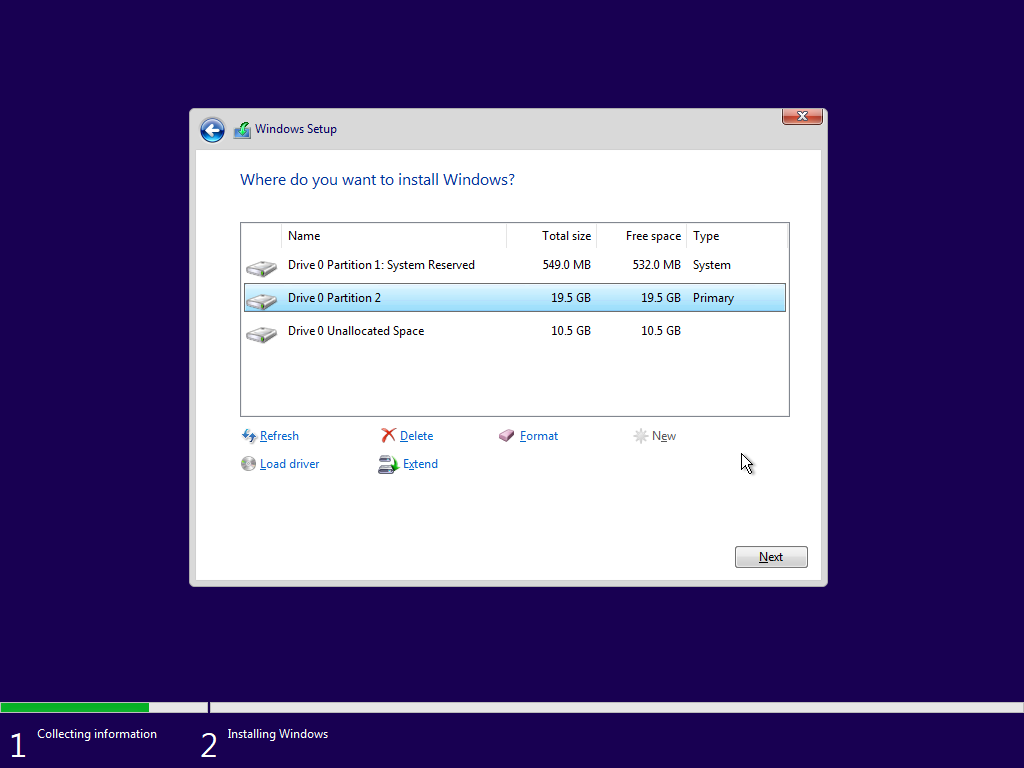
For storage setup, I’m using the manual approach. You can just select the first partition if you want, but custom partitions give you better control.
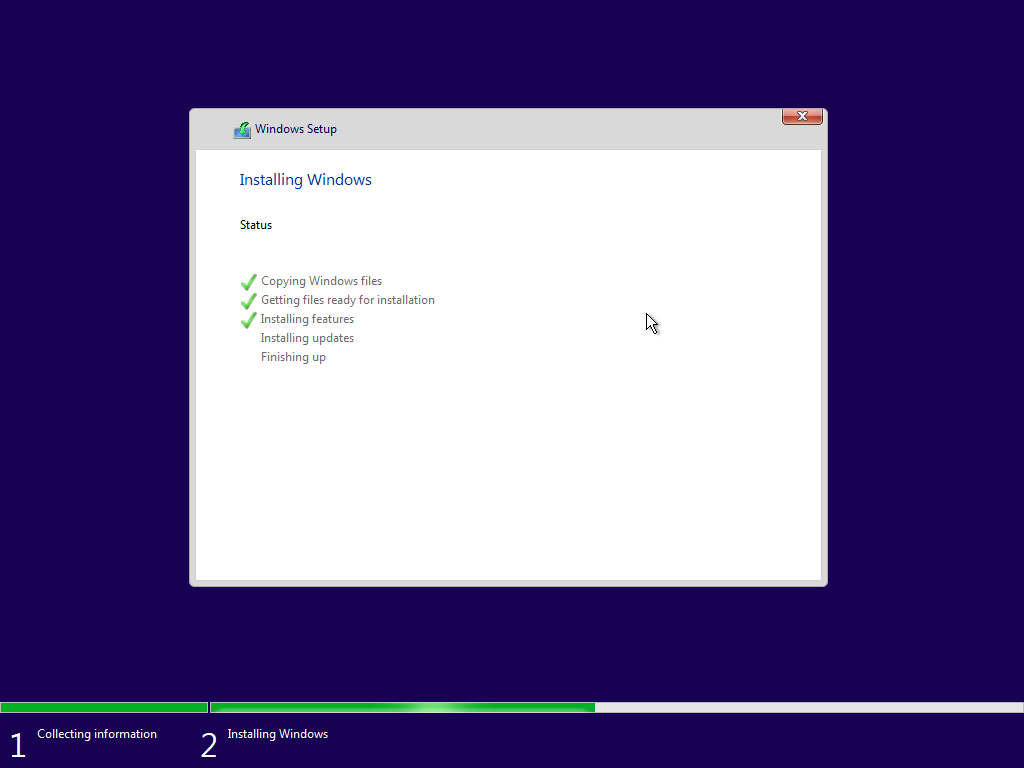
Installation Progress
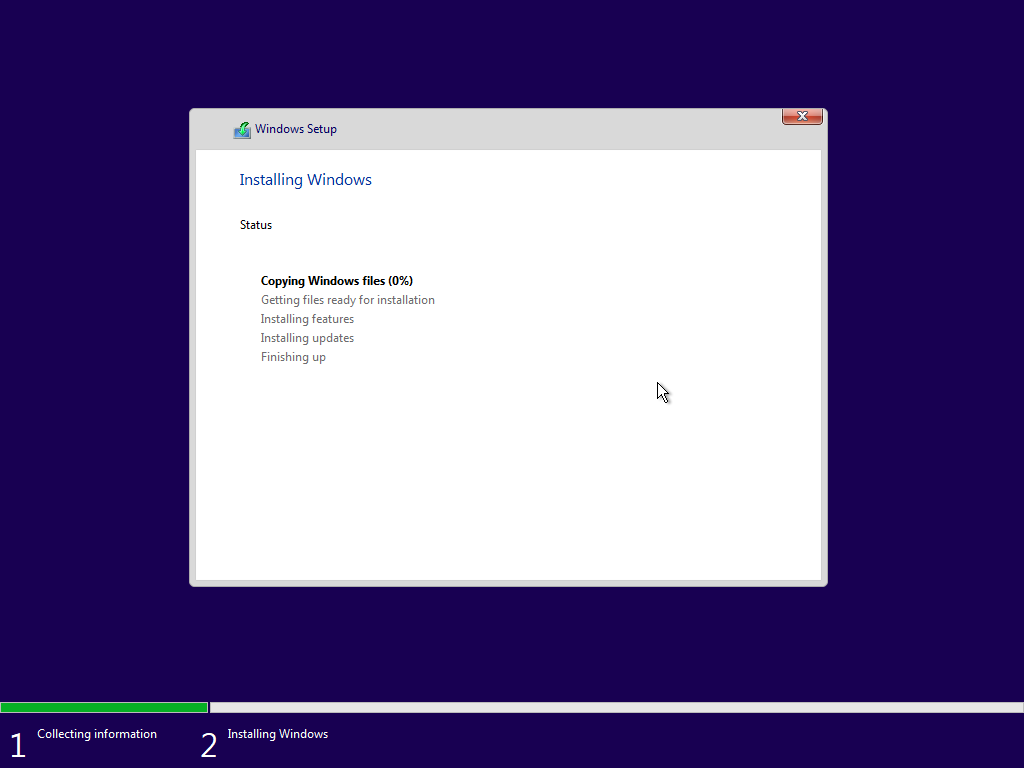
Click “Next” and wait for the installation to complete. This takes some time depending on your hardware.
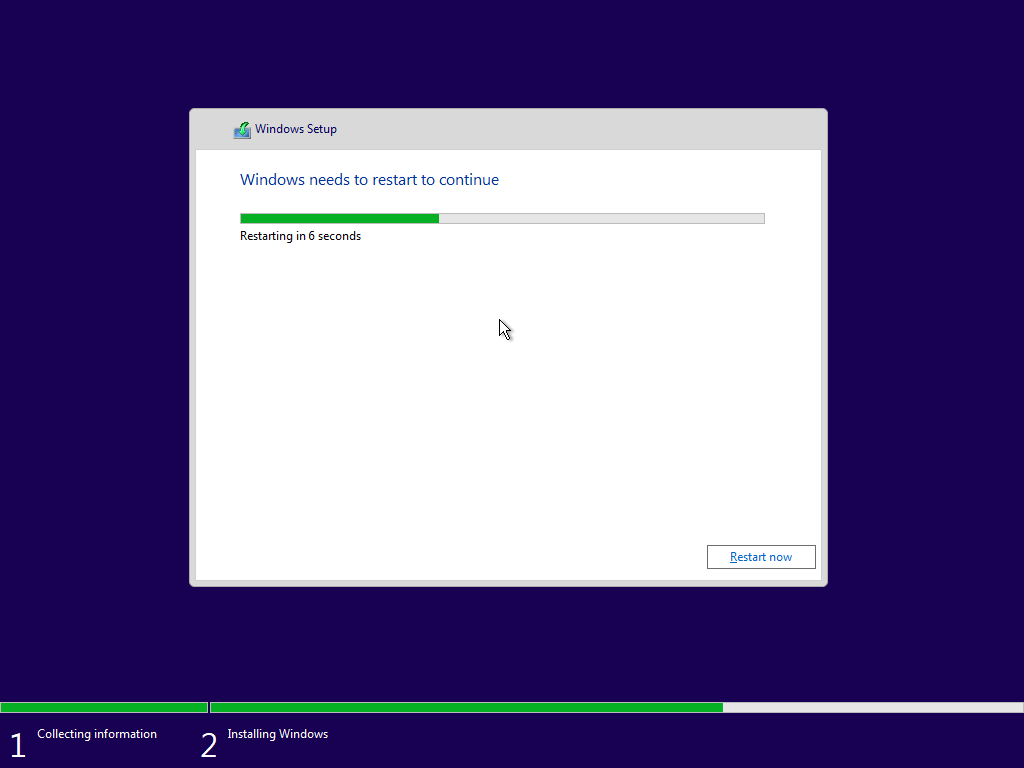
System Restart
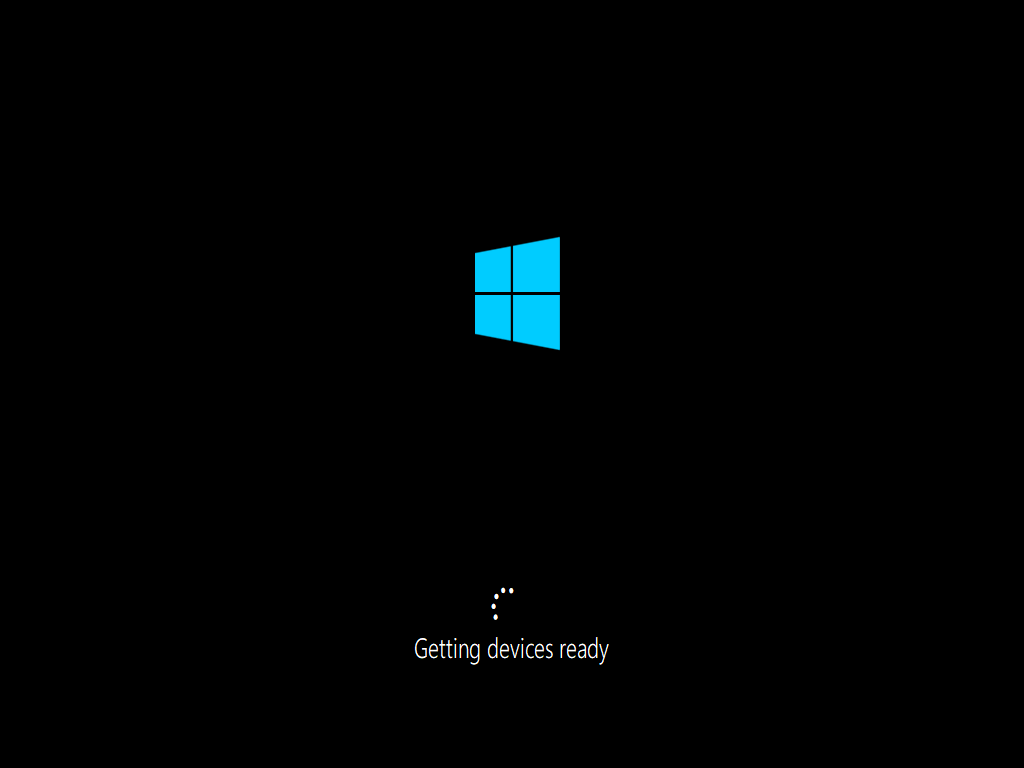
When installation finishes, your computer will restart automatically. Don’t touch anything during this process.
Initial Setup
After the restart, you’ll get setup screens for your region and keyboard layout. Configure them according to your preferences.
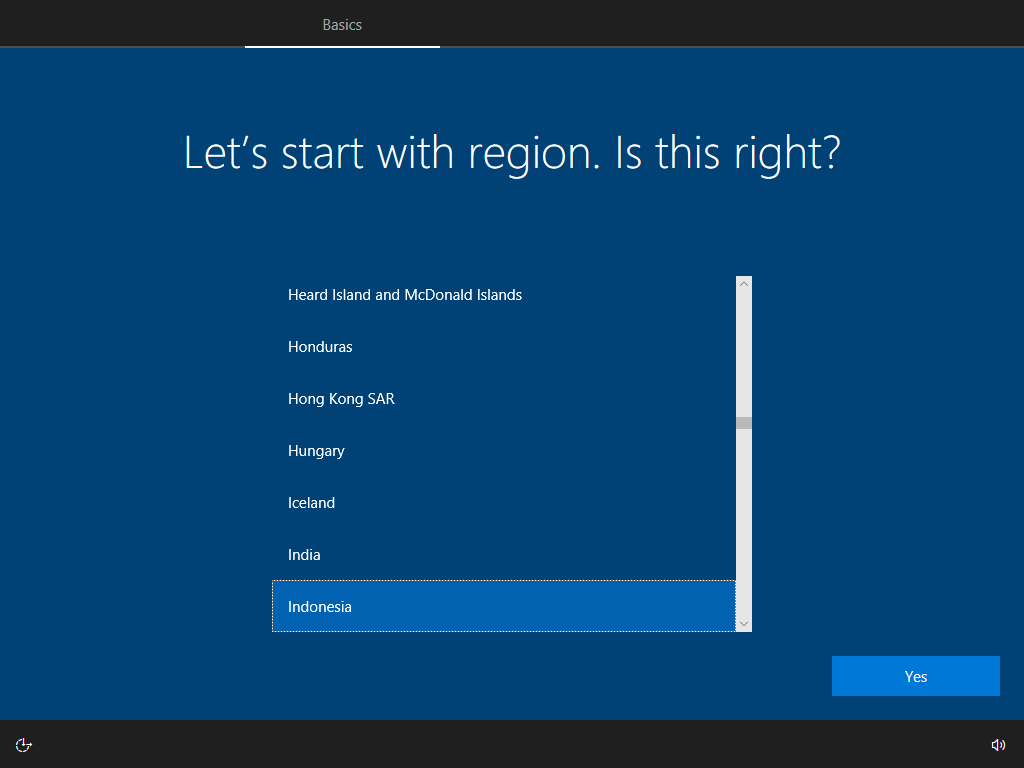
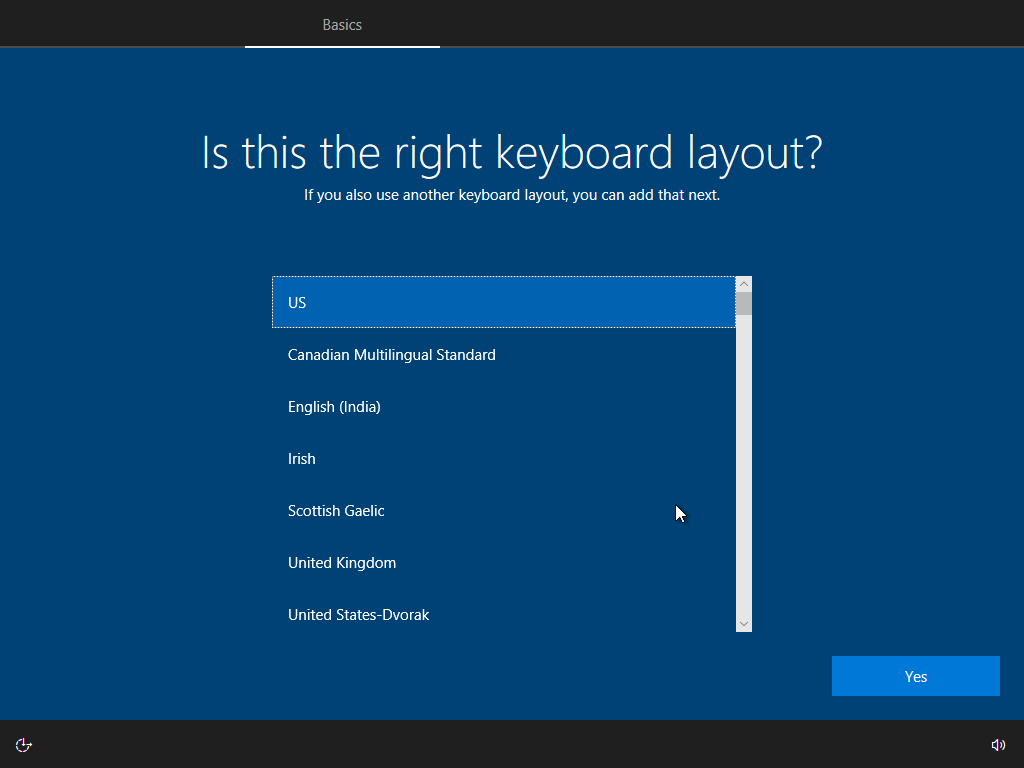
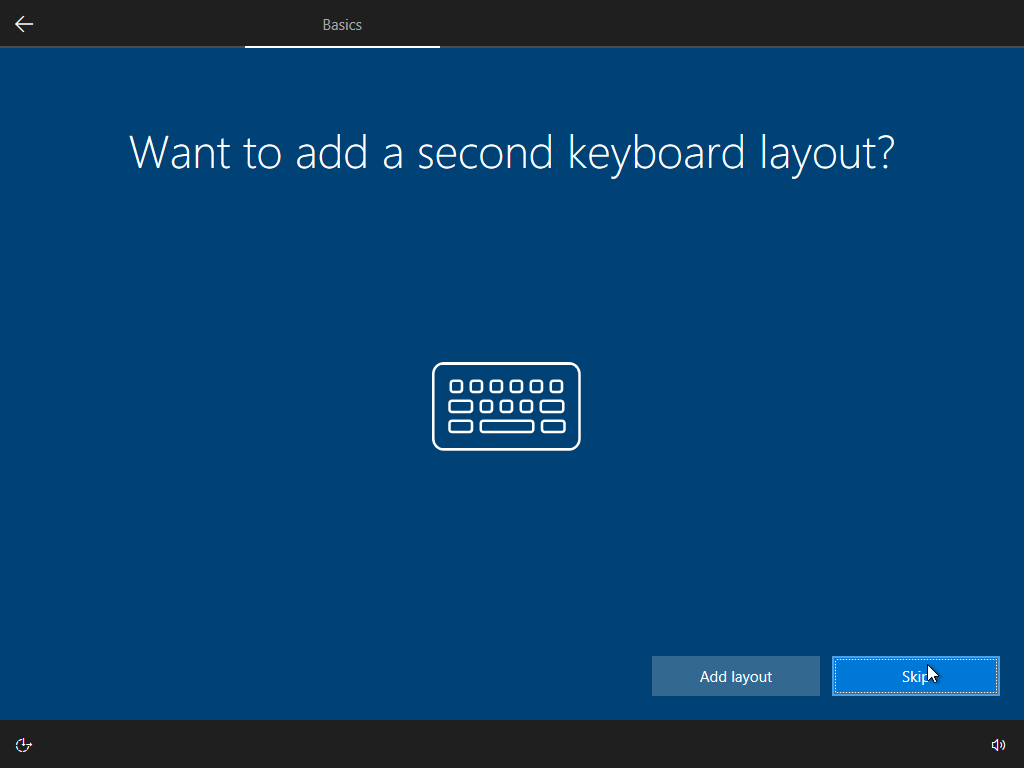
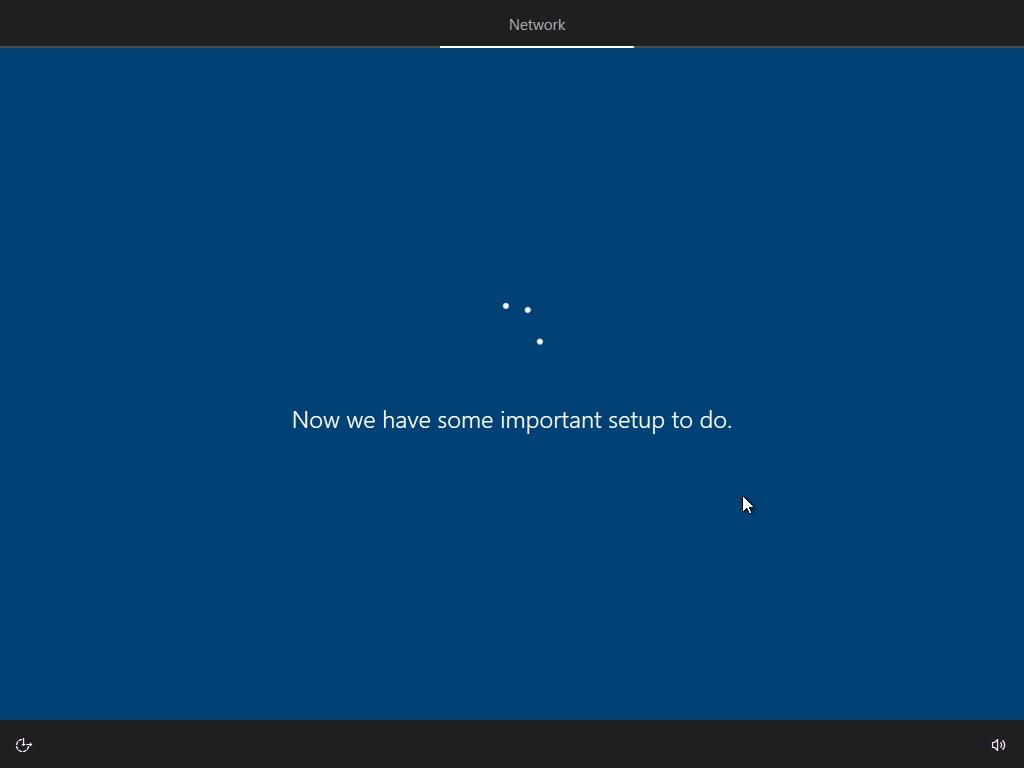
Skip the additional keyboard layouts unless you really need them, and let the setup continue loading.
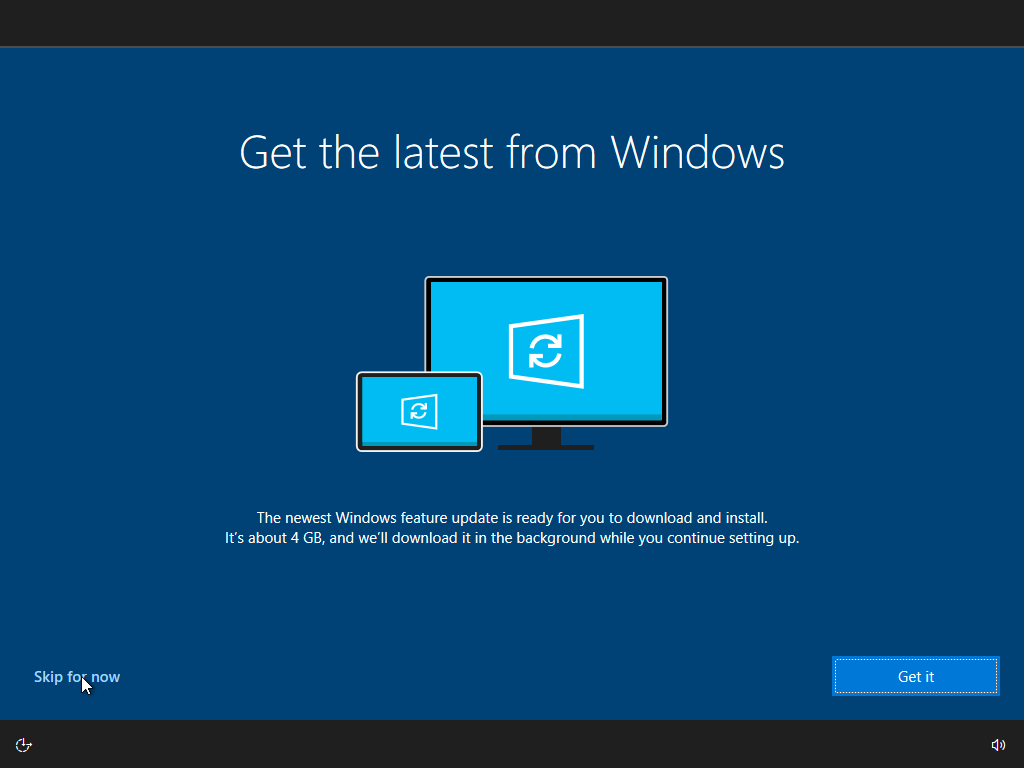
Updates Can Wait
When Windows asks about updates, feel free to skip this for now. We want to get you up and running first!
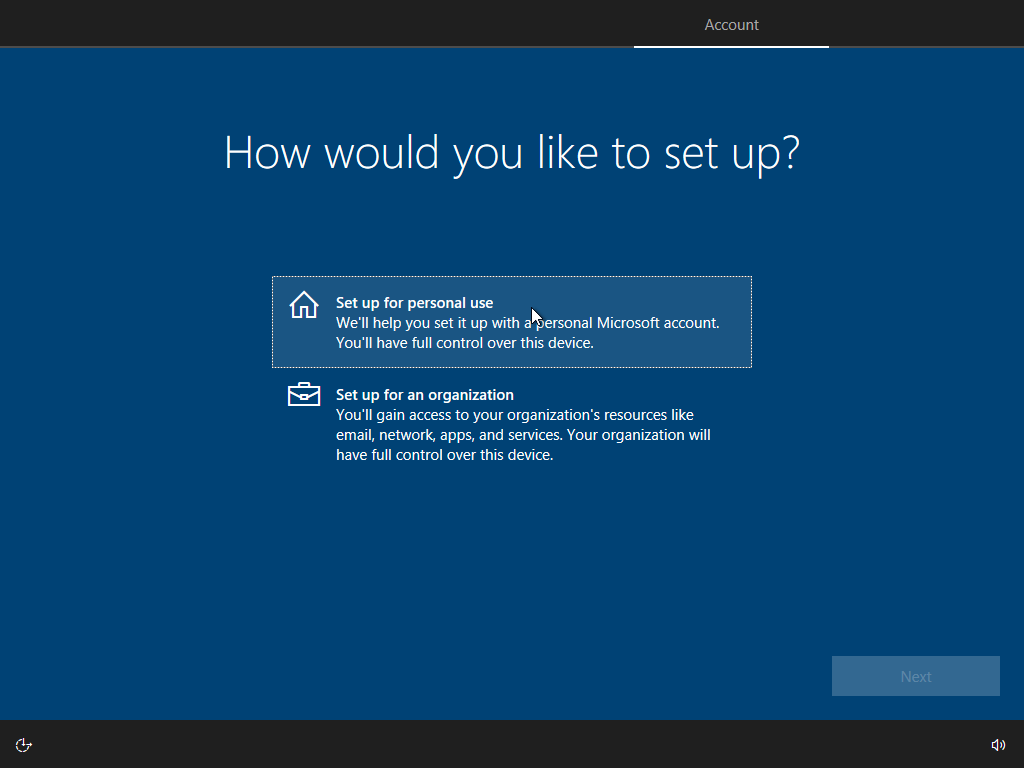
Personal Use It Is!
Choose “Set up for personal use” unless you’re doing this for work.
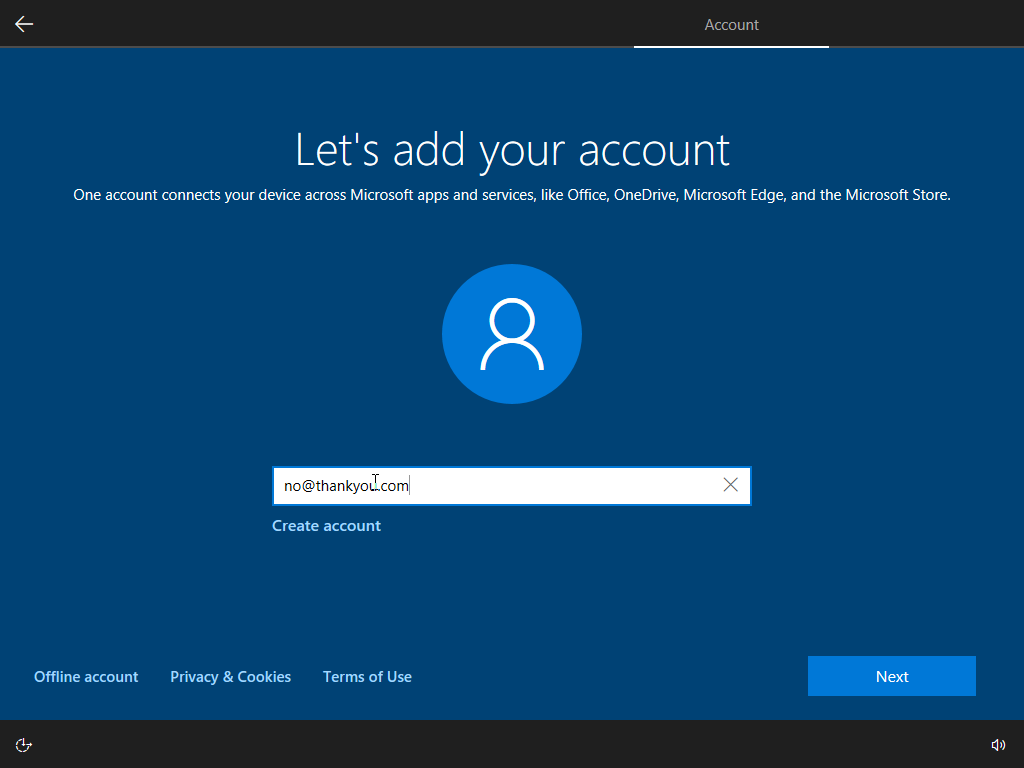
Microsoft Account Bypass
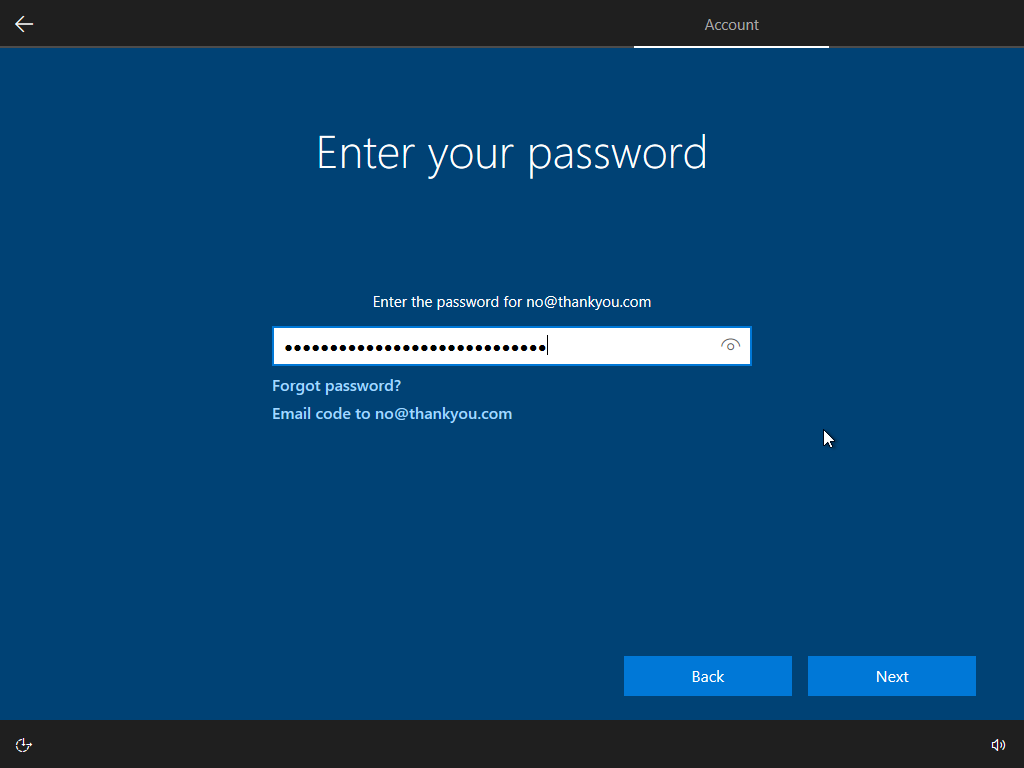
If you don’t want to sign into a Microsoft account, you can bypass this step. Just enter a fake email and any password.
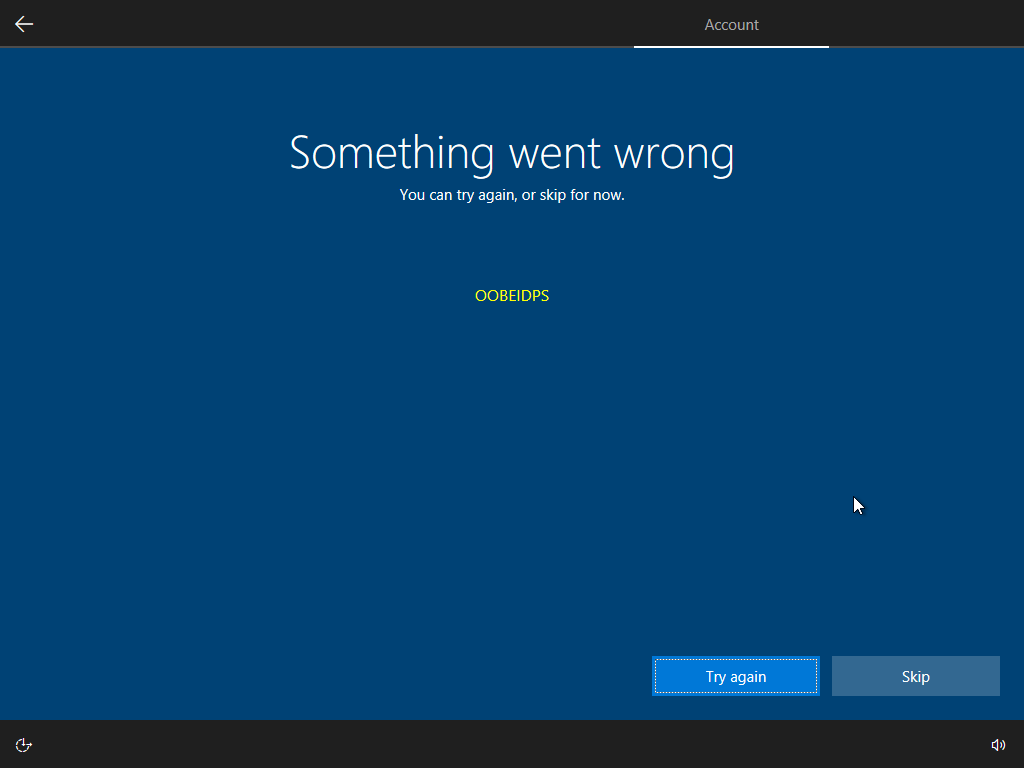
You’ll get an error screen, which gives us a “Skip” option.
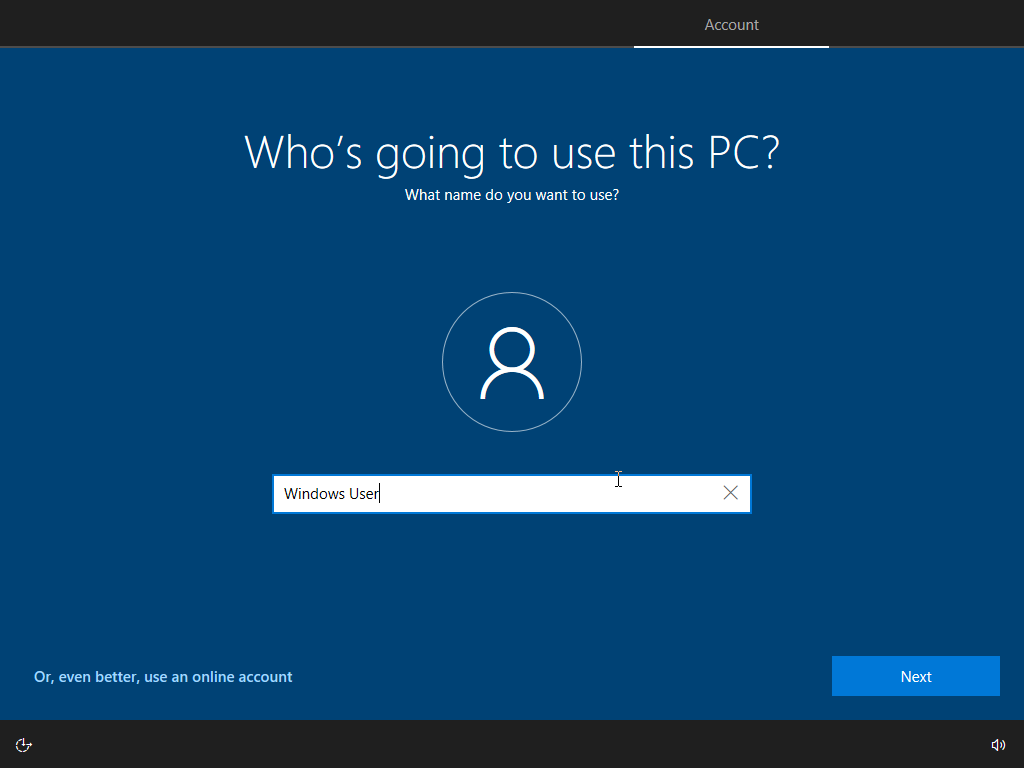
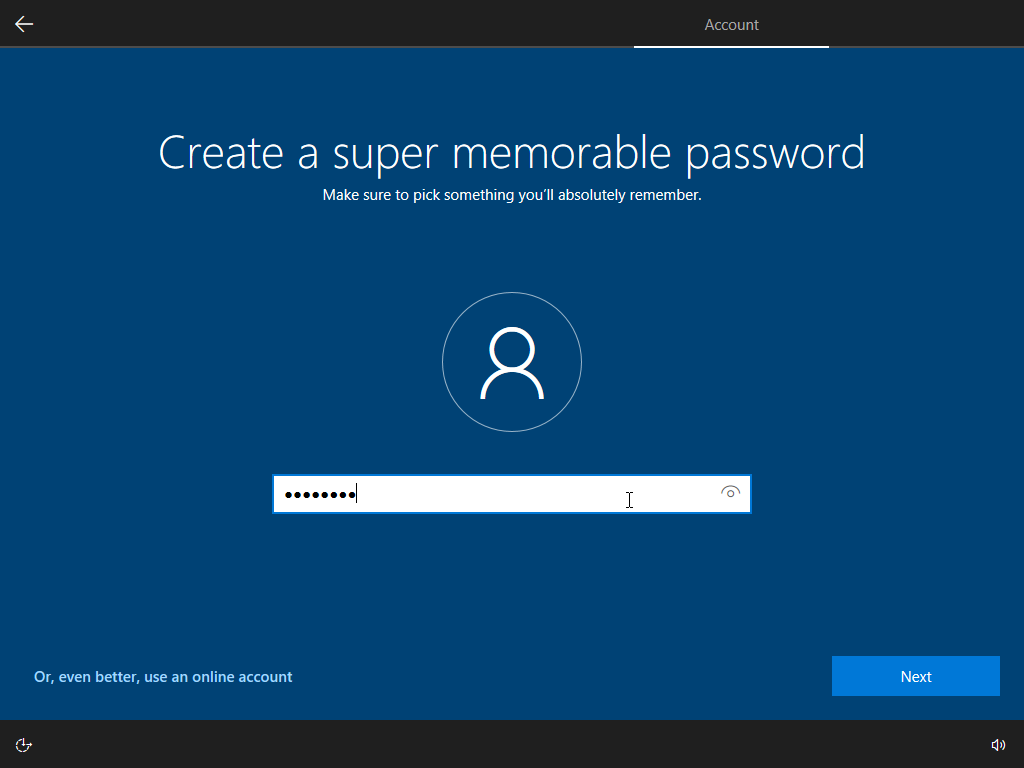
Create Your Local Account
Now create your local Windows username and password. Pick something you’ll remember!
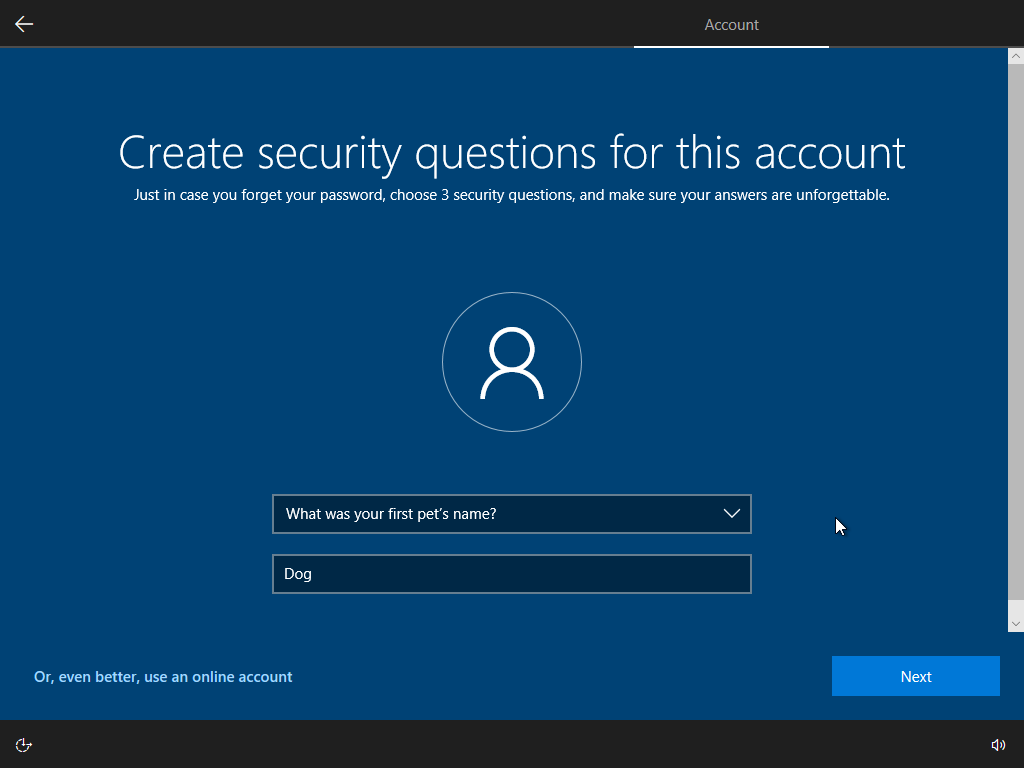
Security Questions
Since we bypassed the Microsoft account, you need to set up three security questions for password recovery.
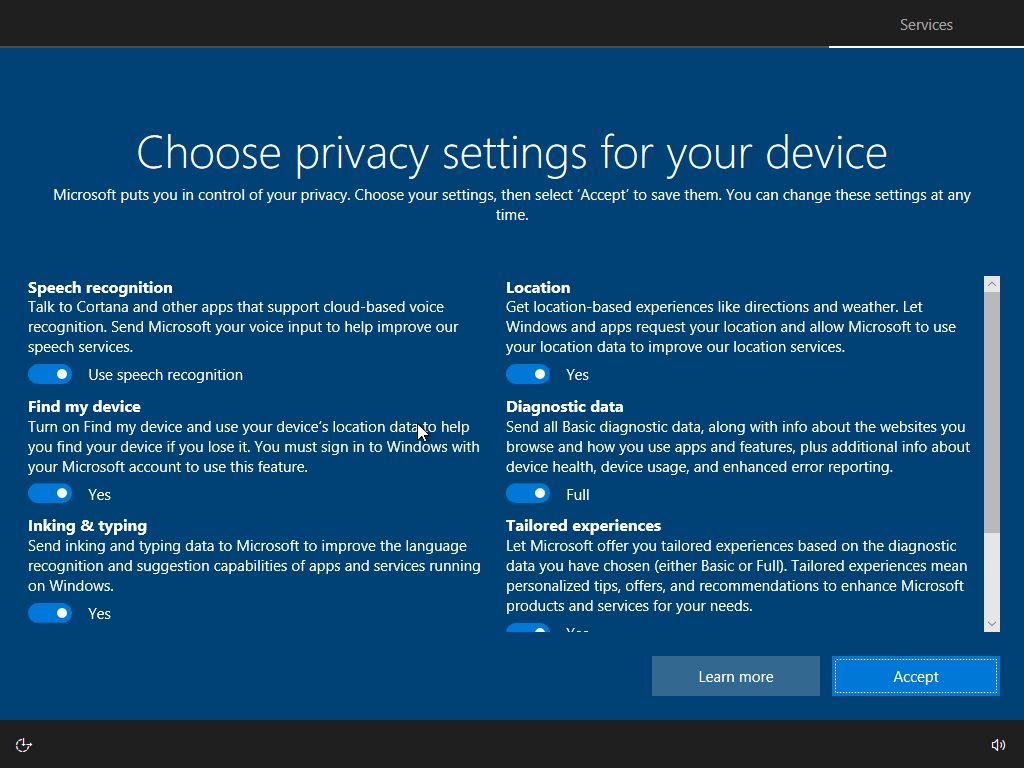
Privacy Settings
Configure these however you want, or just accept the defaults and tweak them later.
Final Setup
Wait for the last bit of setup to finish.
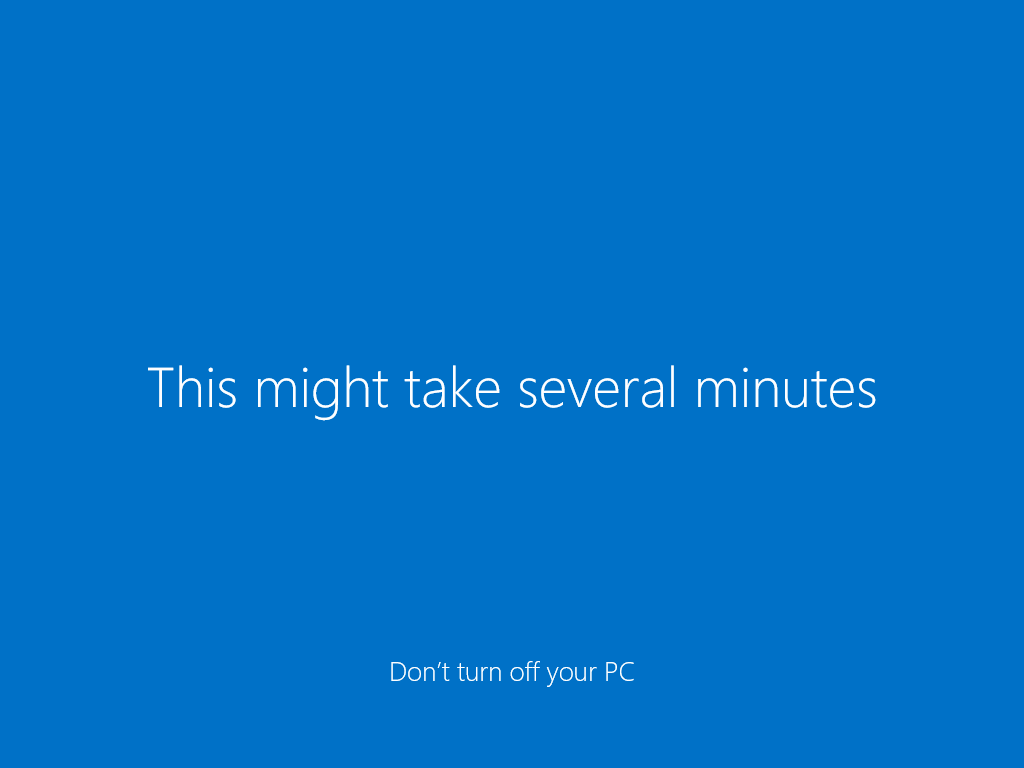
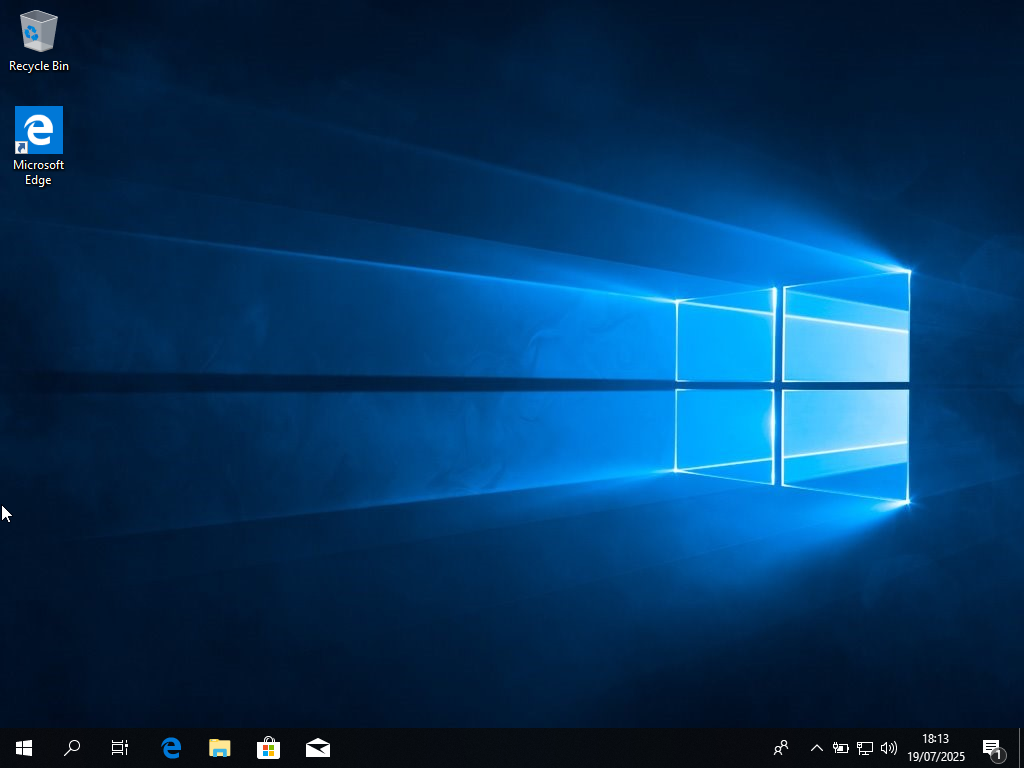
Windows 10 is now installed and ready to use.
[error_encrypted_permission_error]
Bonus: Installing Autodesk EAGLE
For PCB design work, here’s how to install EAGLE.
Update Edge First
Since I’ve got the EAGLE installer on Google Drive and the default Edge might be too old:
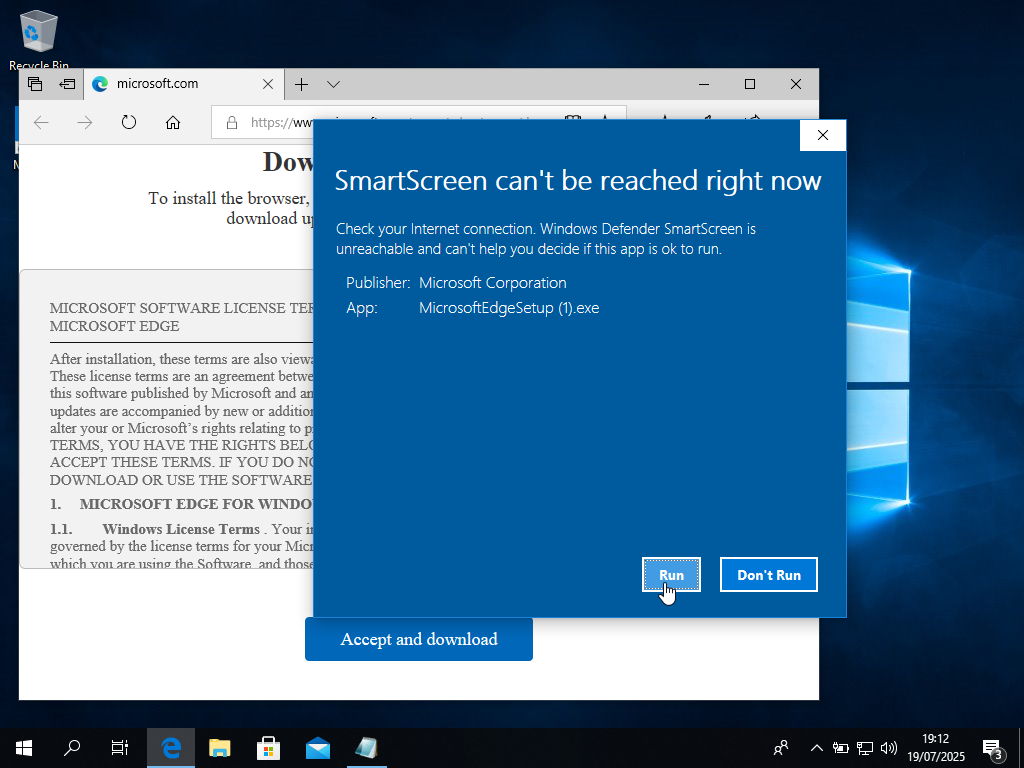
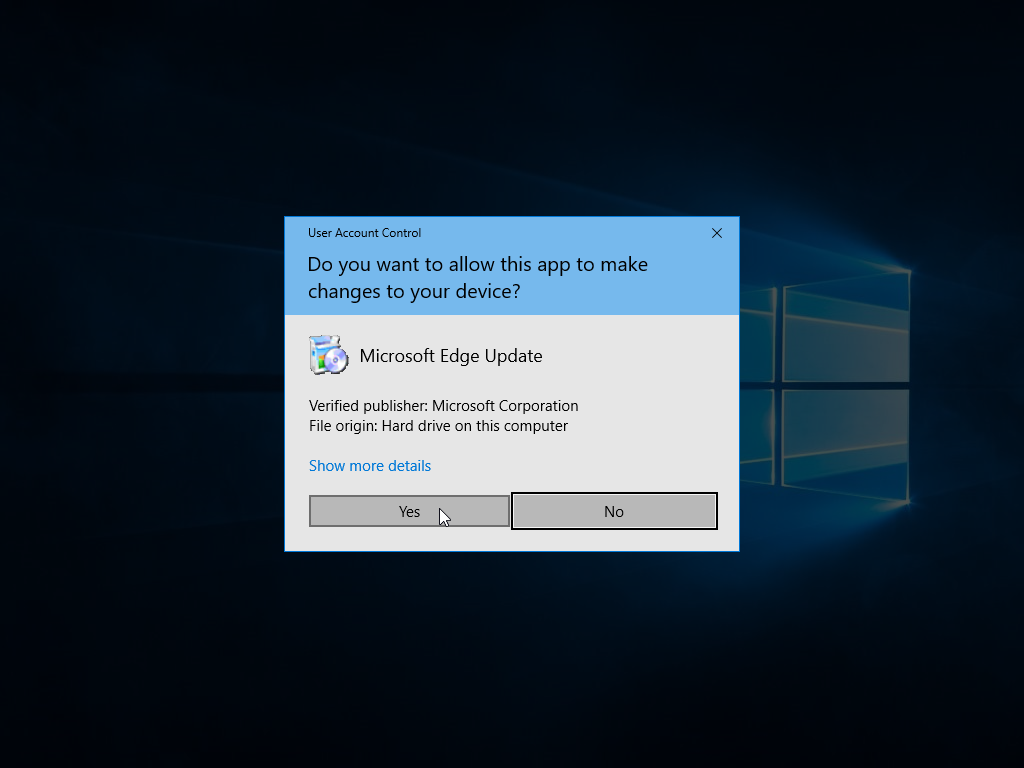
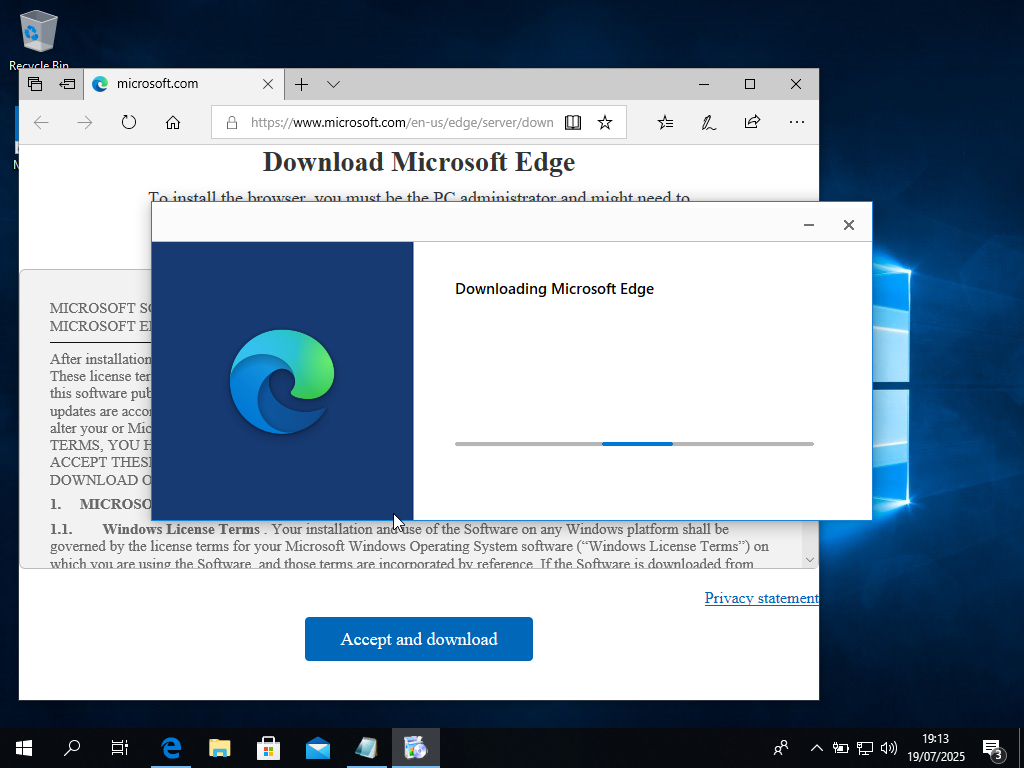
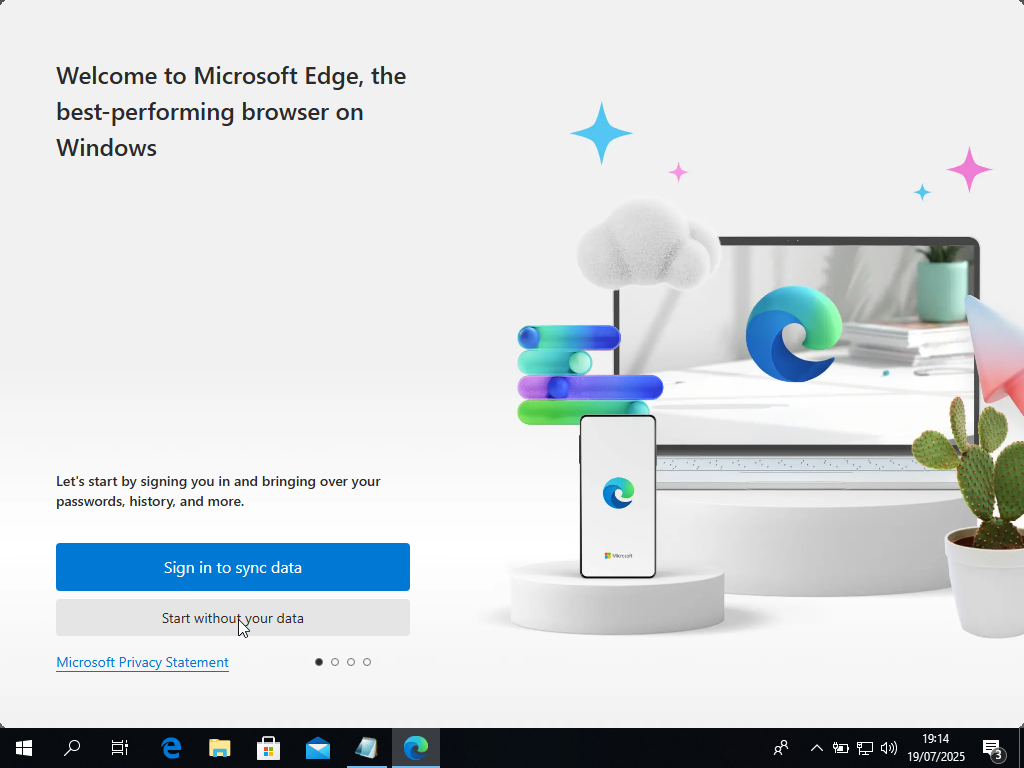
- Download the latest Edge from Microsoft’s site
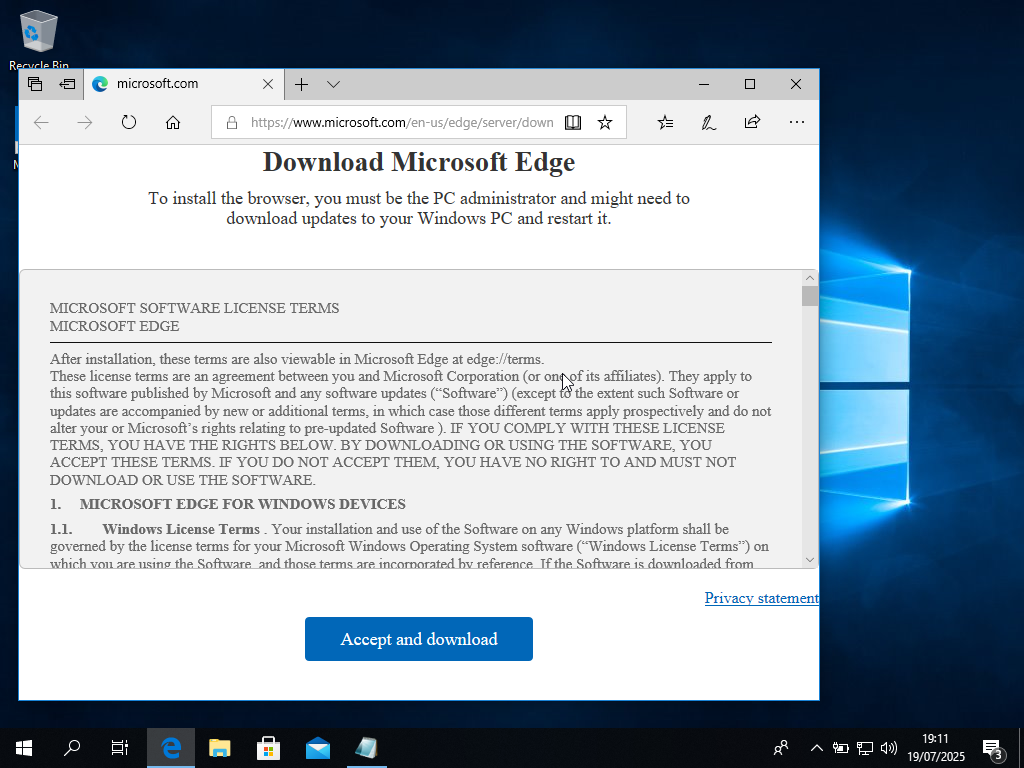
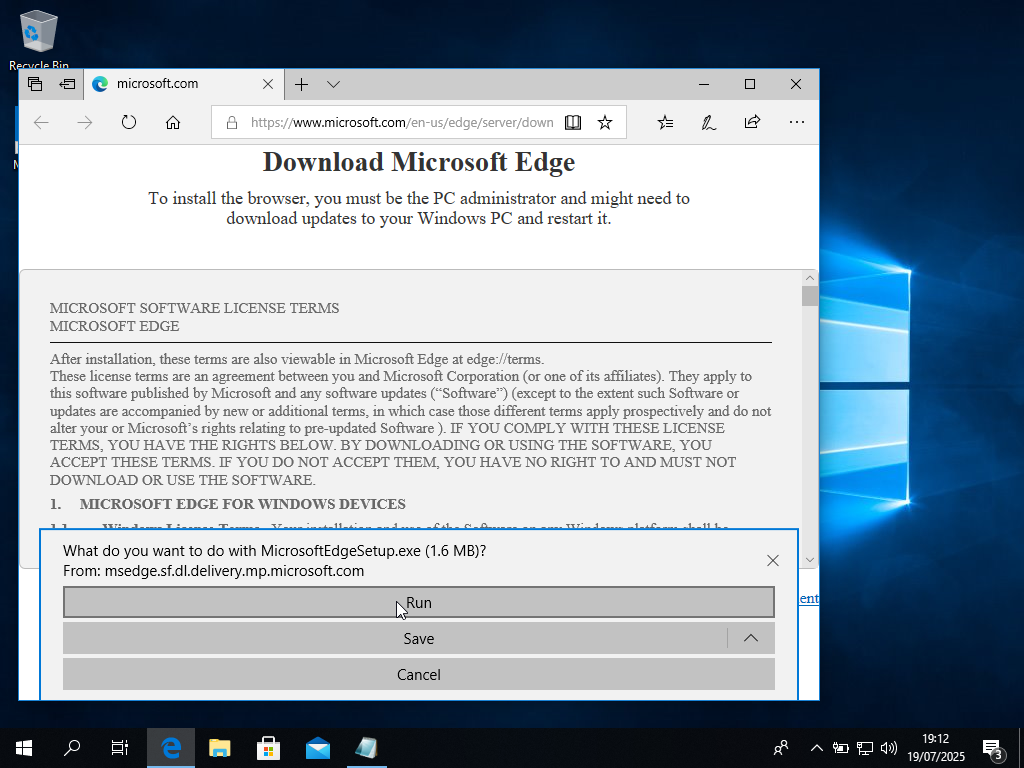
- Install it and allow security prompts
- Wait for installation to complete
Installing EAGLE
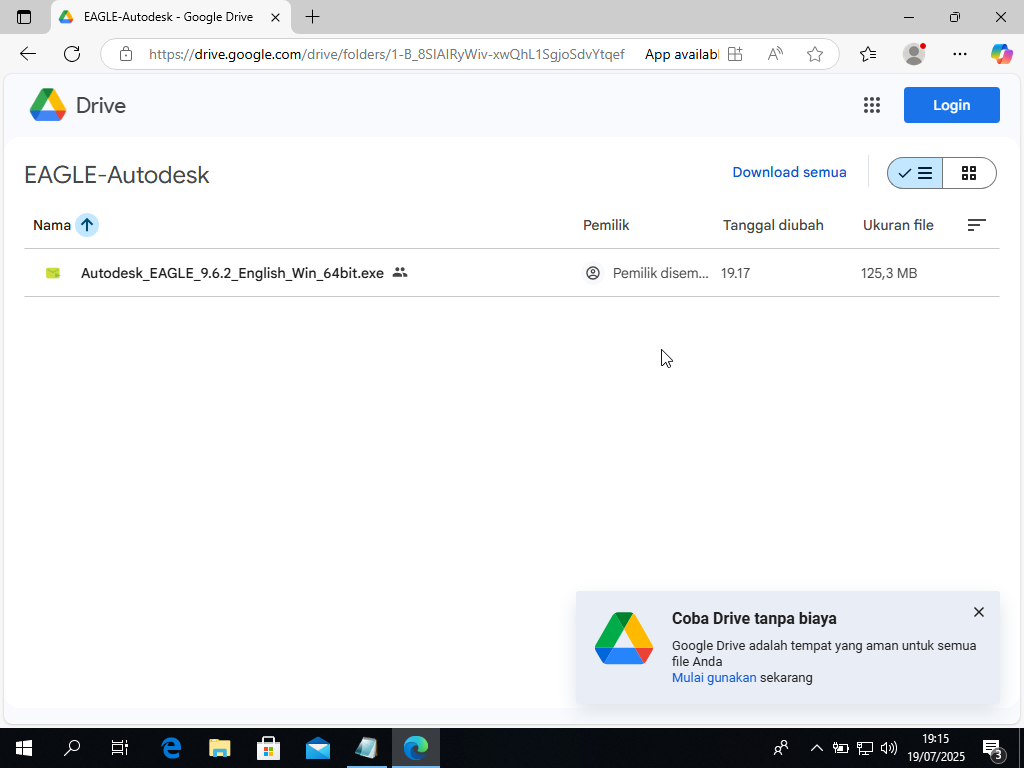
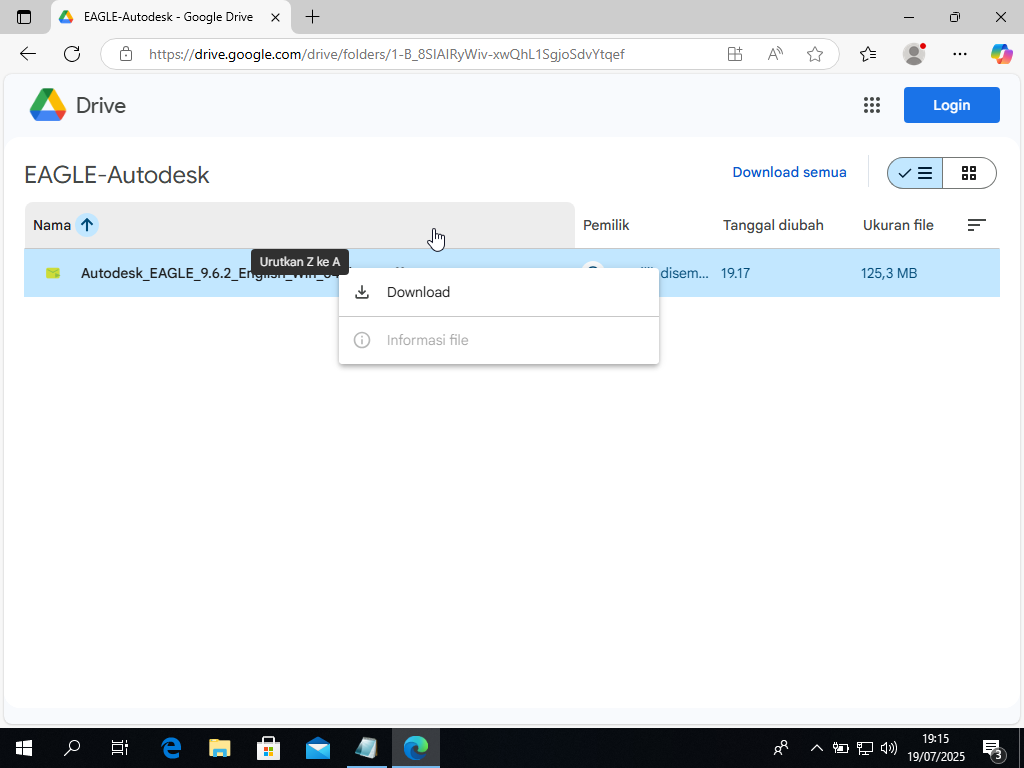
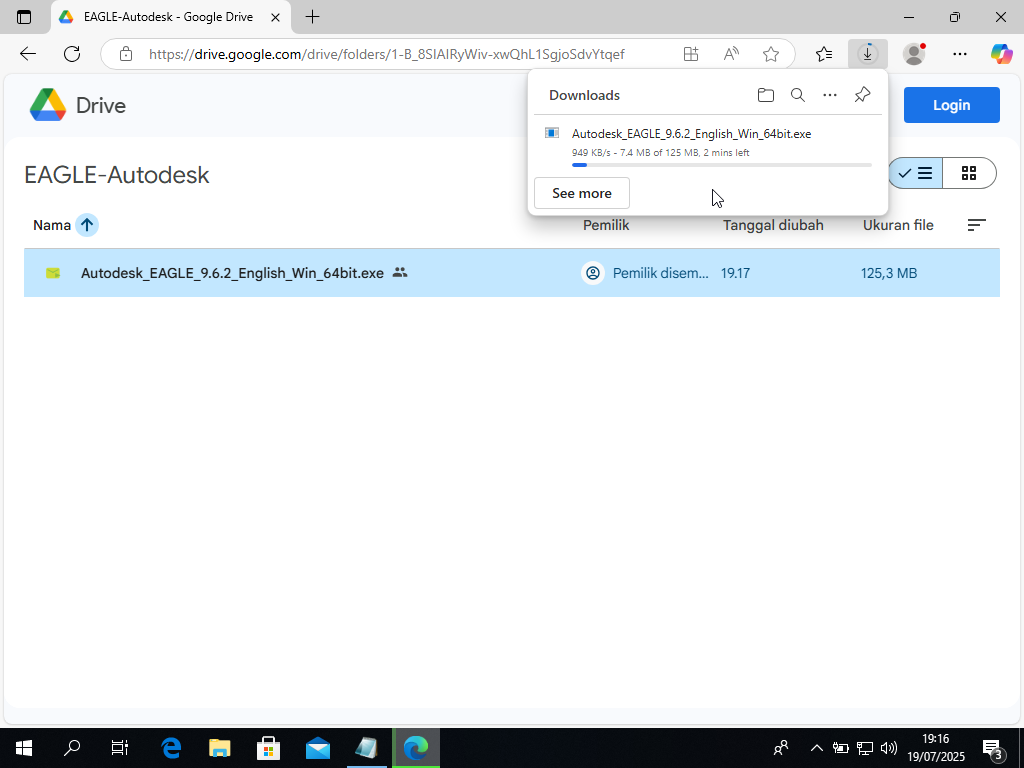
- Grab the installer from my Google Drive folder
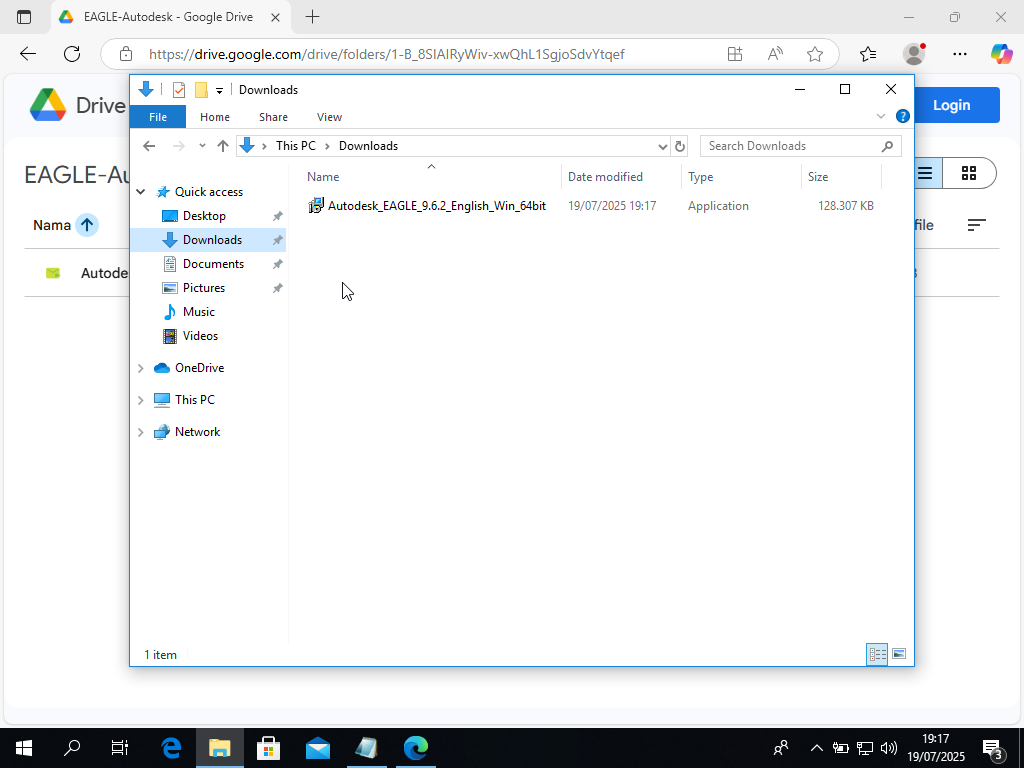
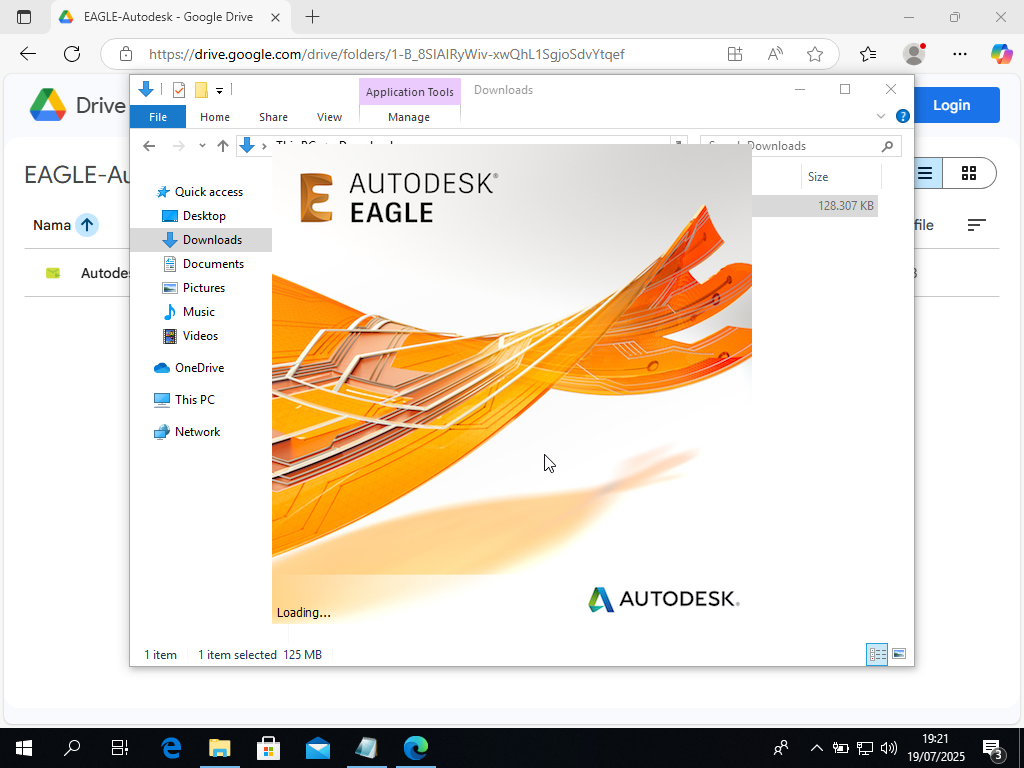
- Run the installer from your Downloads folder
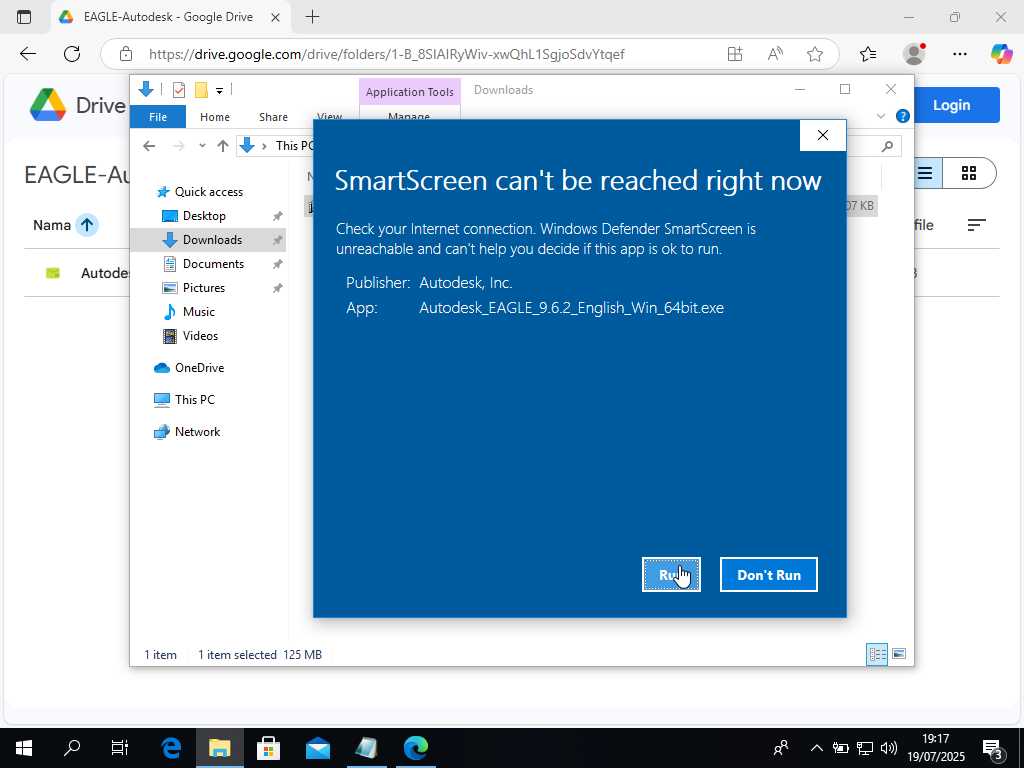
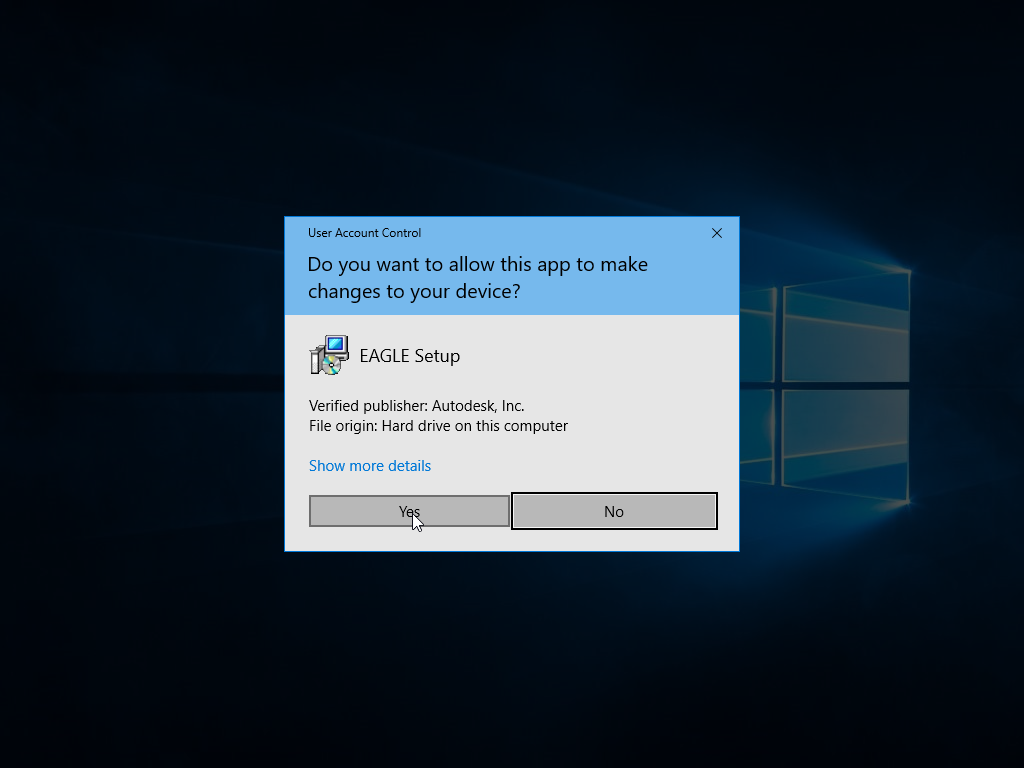
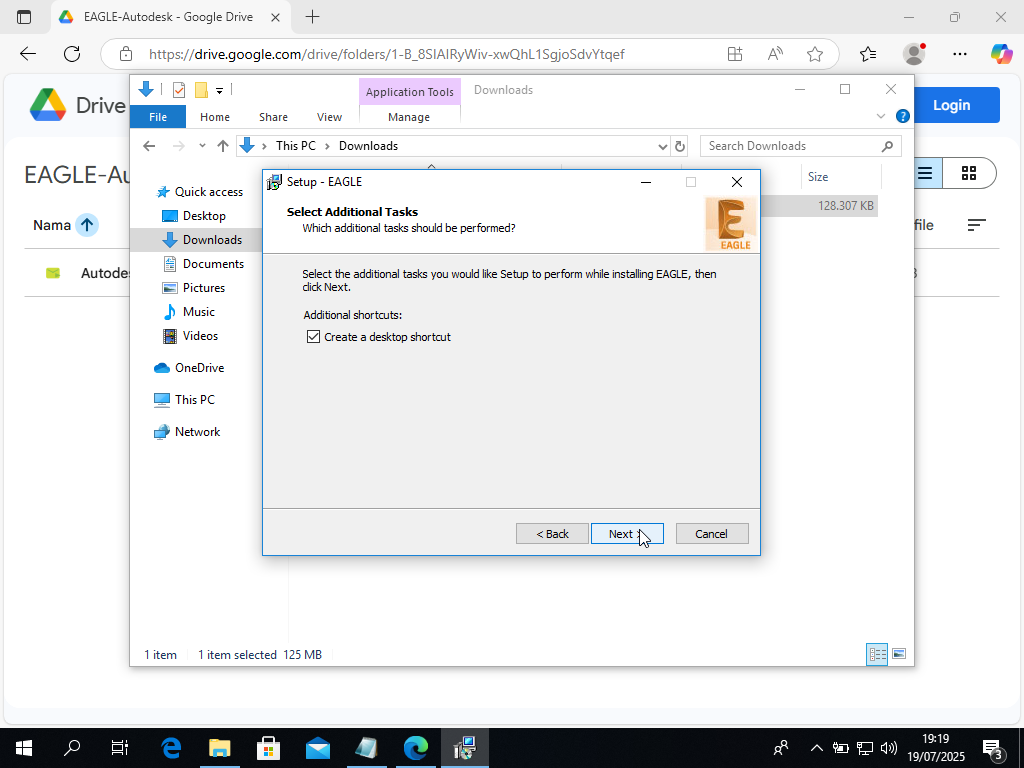
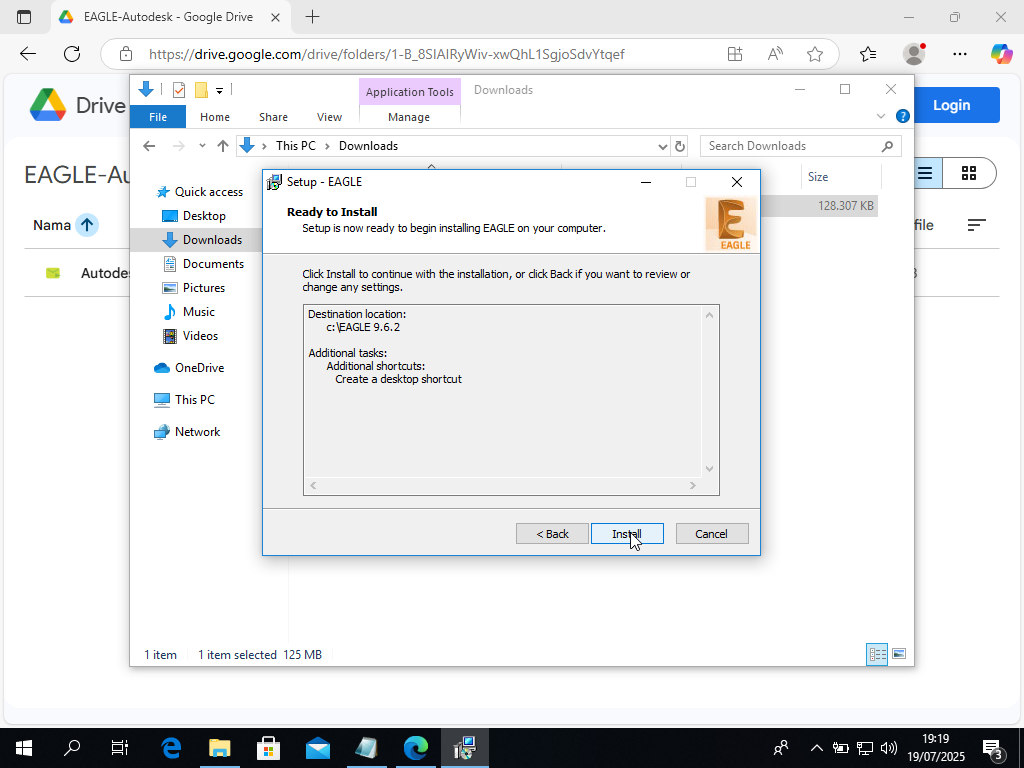
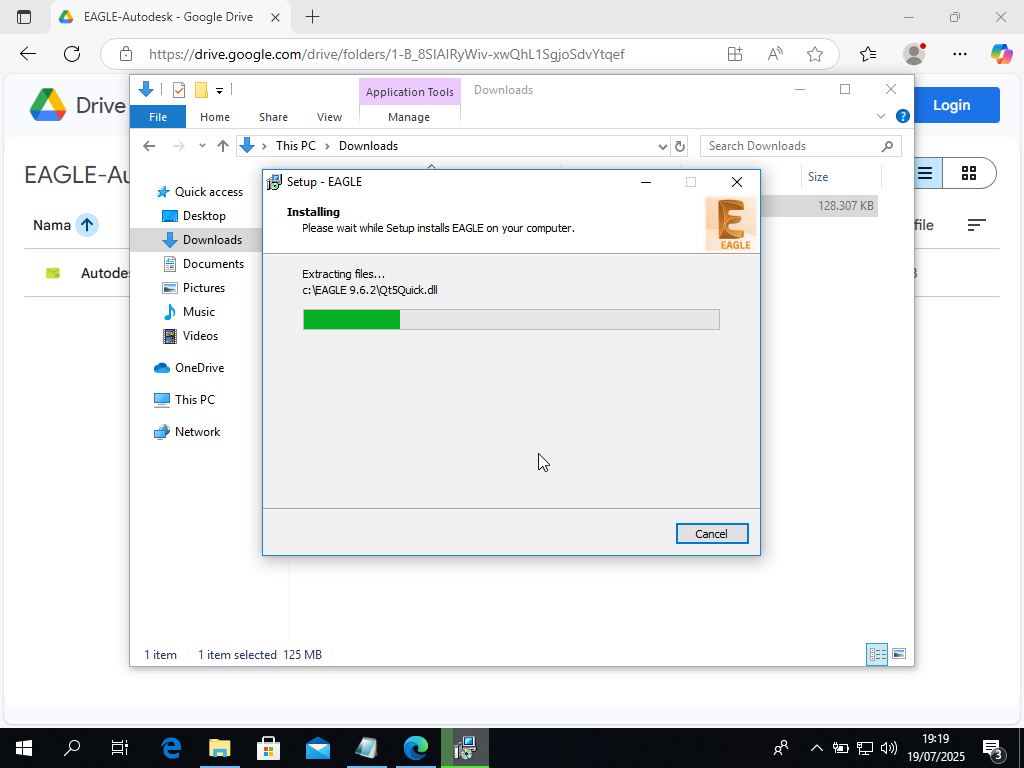
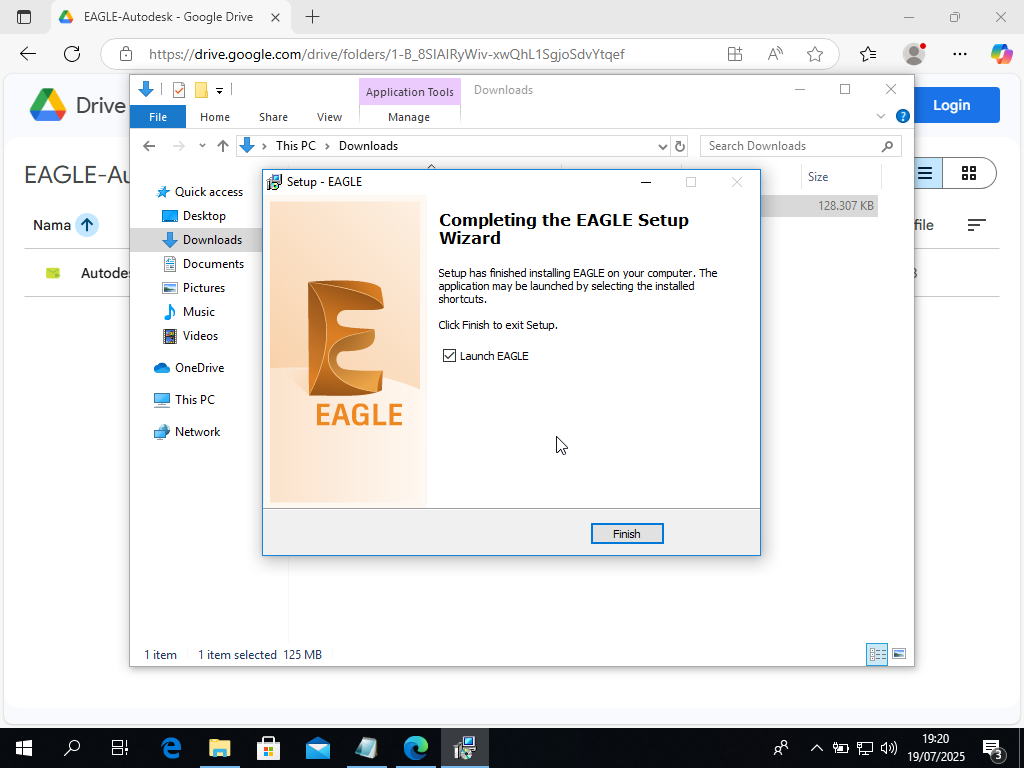
- Follow the installation wizard with default settings
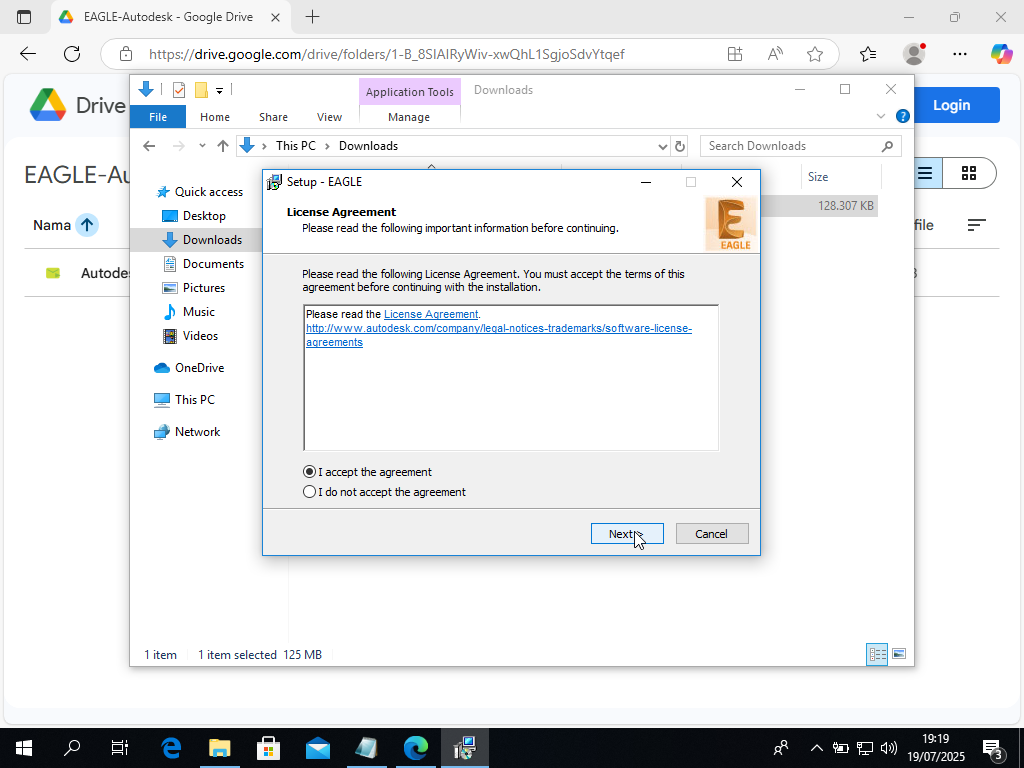
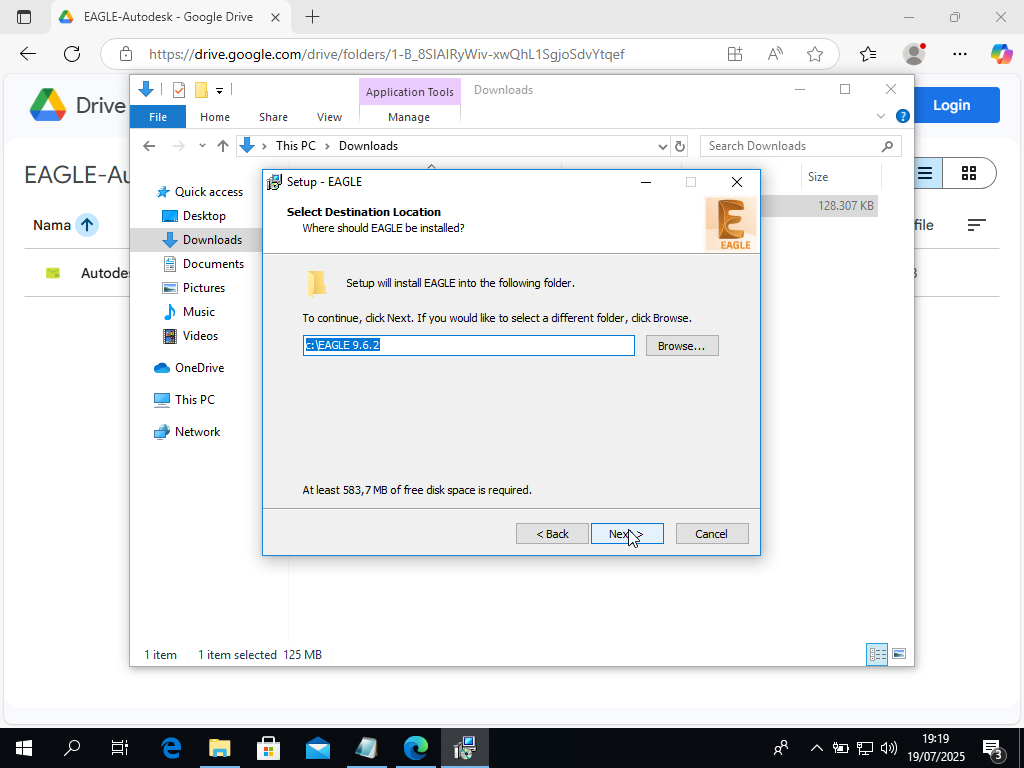
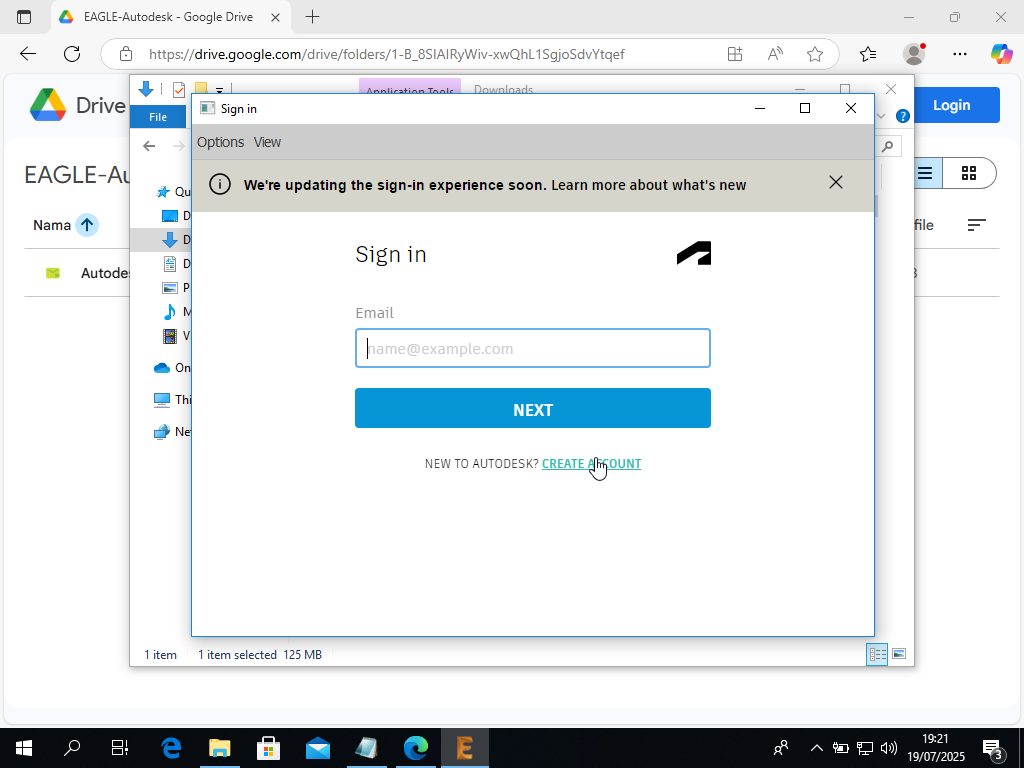
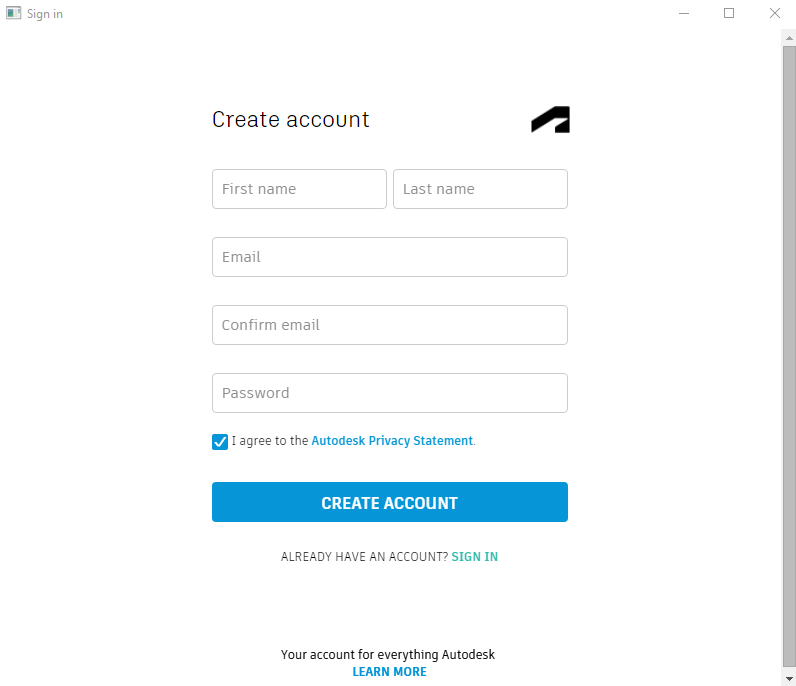
- Create an Autodesk account when EAGLE launches
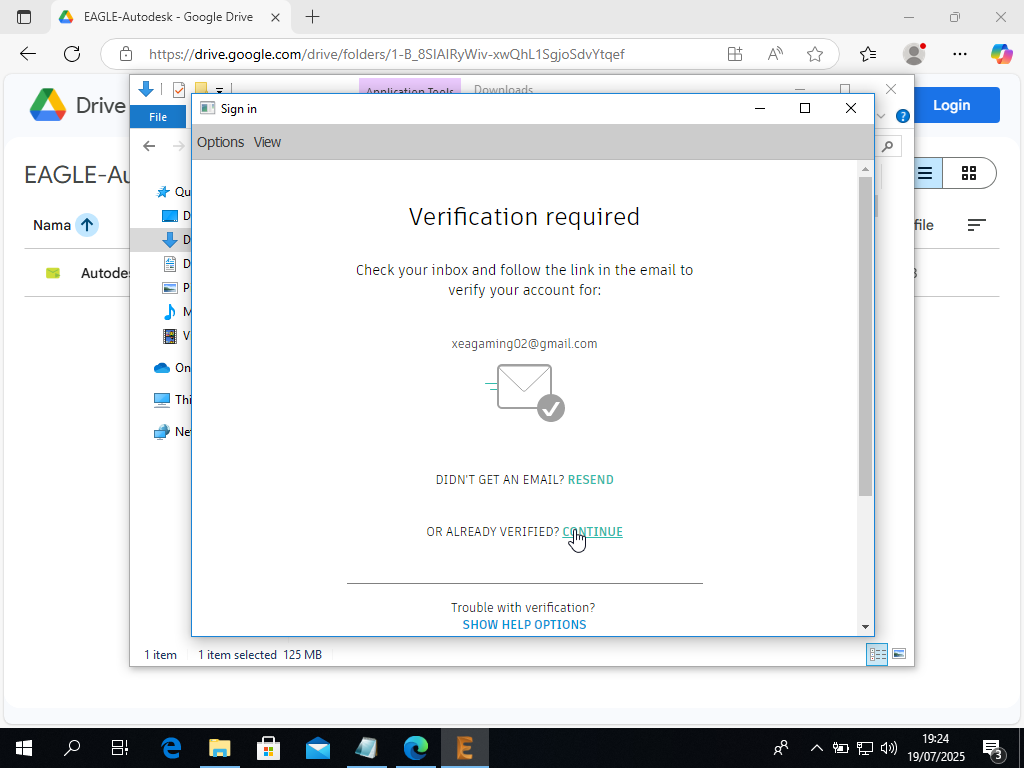
- Verify your email
Troubleshooting EAGLE
EAGLE crashing after the splash screen? This is a known issue.
The fix: Navigate to EAGLE’s installation folder, find libeay32.dll, and rename it to libeay32.dll.bak. Then try launching EAGLE again.
For more details, check out Autodesk’s official solution.
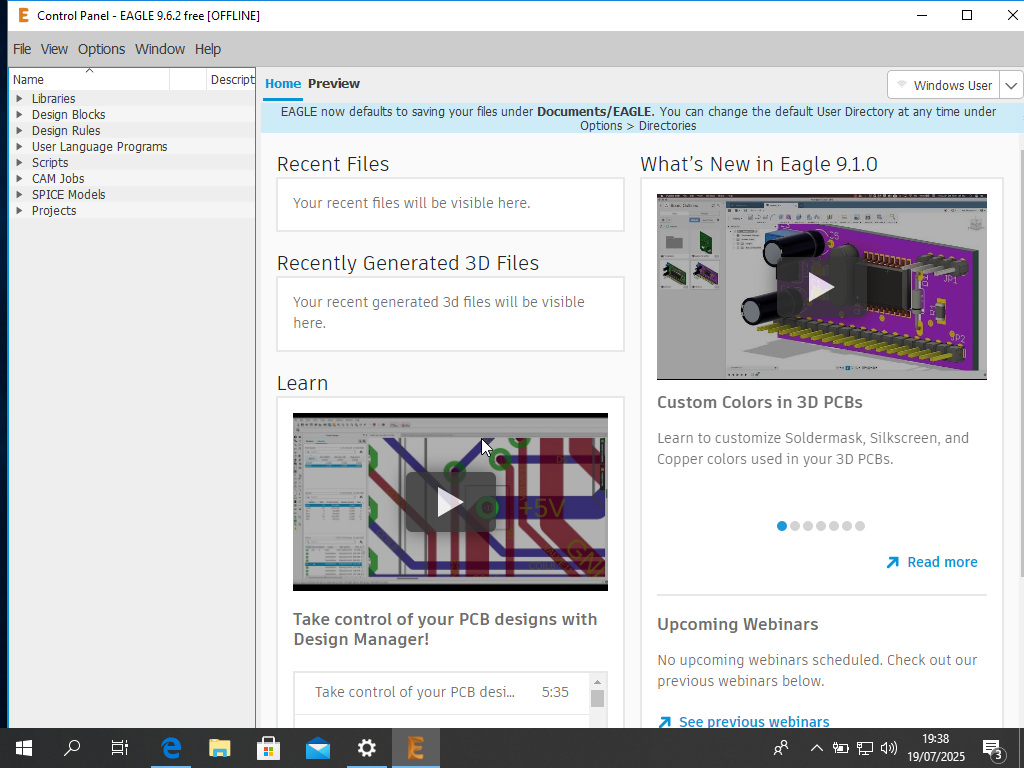
EAGLE is now ready for PCB design work.
Summary
What we’ve accomplished:
- Fully functional Windows 10 installation
- Complete Microsoft Office suite
- Autodesk EAGLE for electronics projects
- Everything activated properly
Windows 10 support ends this October, but you now have a working system that many people still prefer for compatibility and familiarity reasons.
If you got stuck anywhere or have questions, feel free to reach out. This setup should serve you well for your development and design work.