If you work with JavaScript, you’ve probably dealt with multiple projects requiring different Node.js versions. Installing each version manually is tedious and time-consuming. That’s where Node Version Manager (NVM) comes in.
NVM is a tool that lets you install, manage, and switch between different Node.js versions easily. Instead of being stuck with one global version, you can quickly switch versions depending on your project needs.
This guide will walk you through installing and configuring NVM on Windows.
This tutorial is for Windows only. But if you’re a Linux user, I already made a guide for Debian below:
Node Version Manager (NVM) Tutorial Linux.
Requirements
- Laptop/PC with Windows OS (10/11)
- Internet Connection
- Web browser
NVM Installation
Download NVM Setup
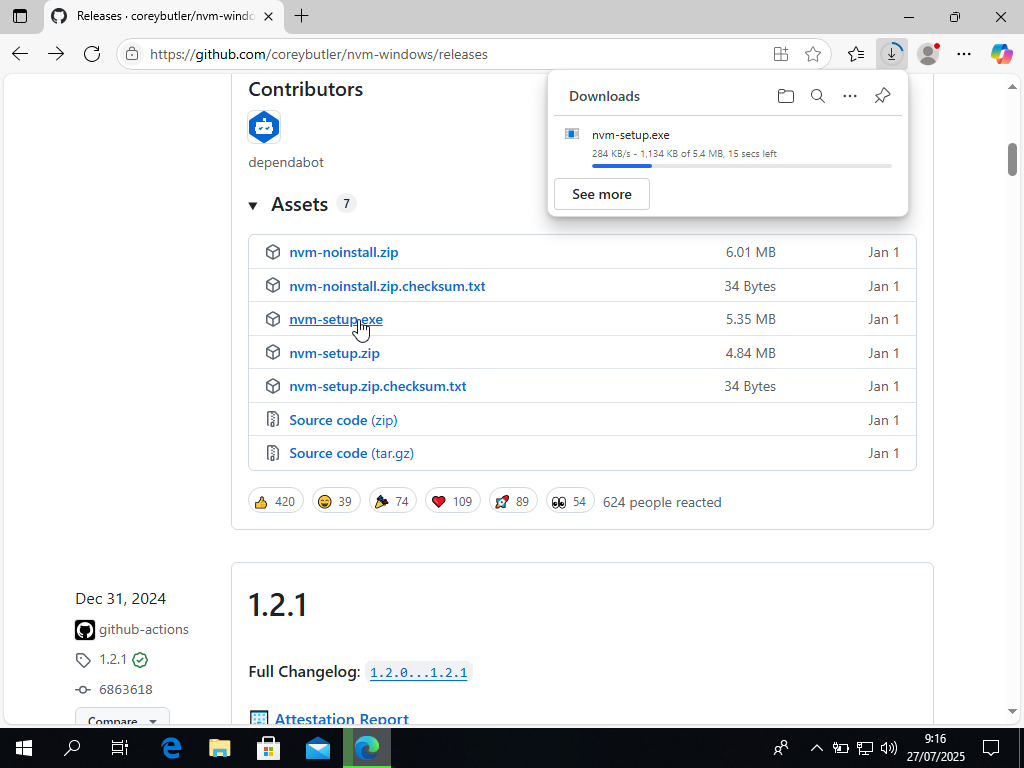
- Download from Corey Butler’s repository here.
- Scroll to the bottom, find “Install Now” or go directly to the Releases.
- Download the latest
nvm-setup.exe.
Install NVM
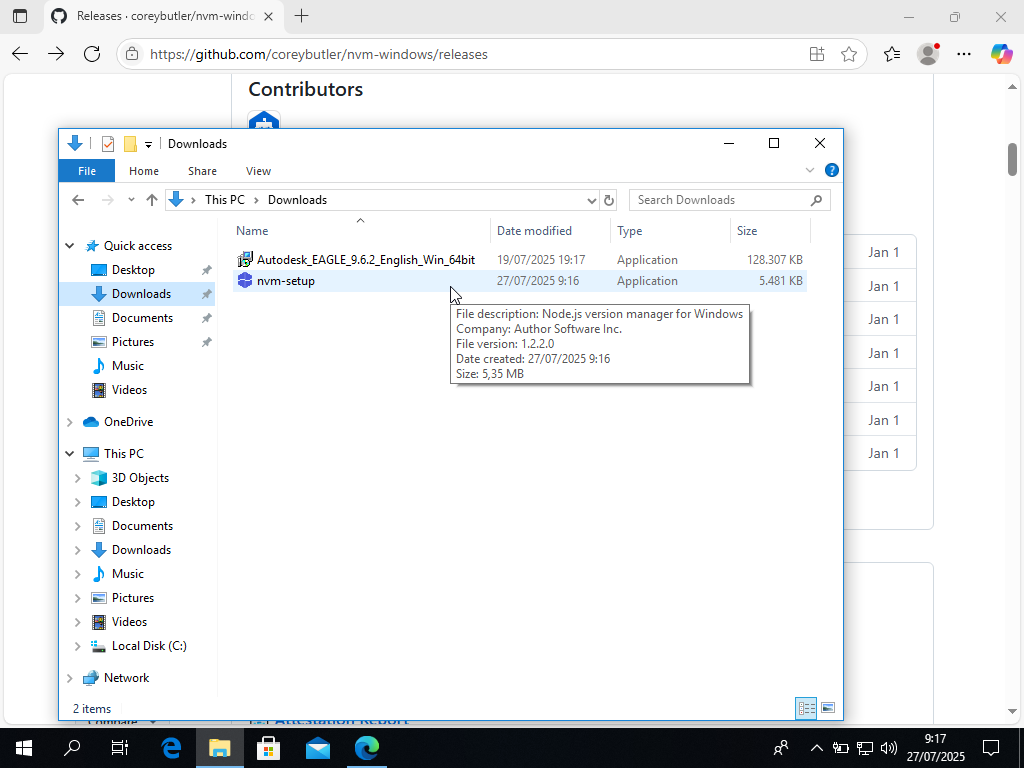
- Run the installer from File Explorer > Downloads.
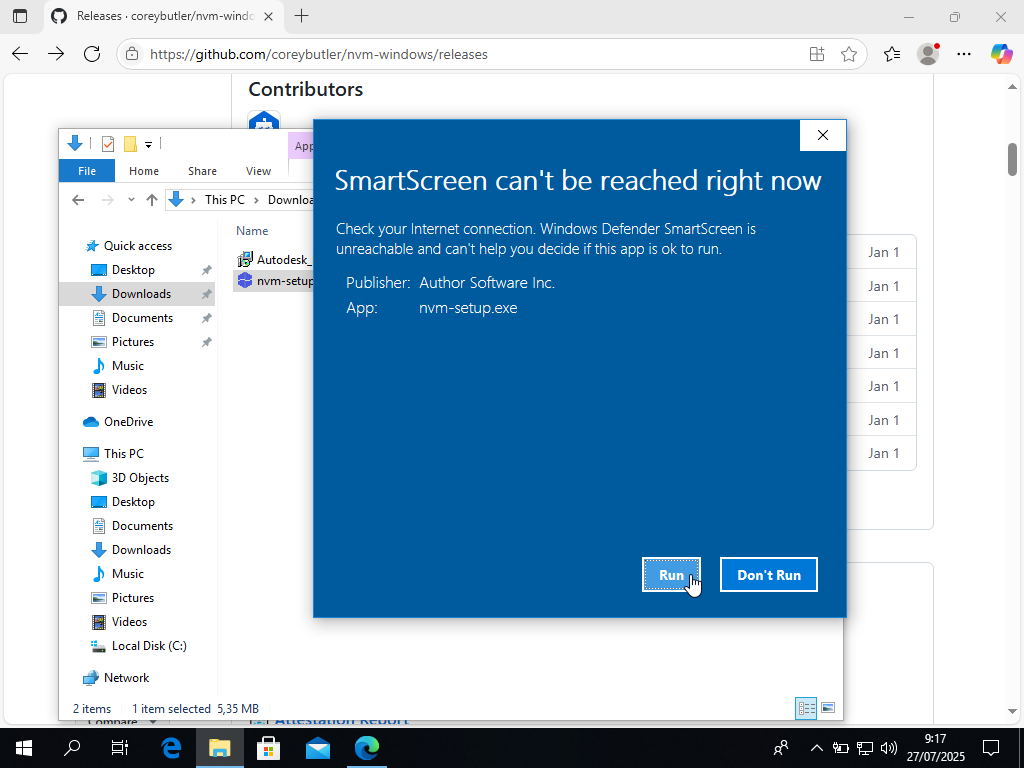
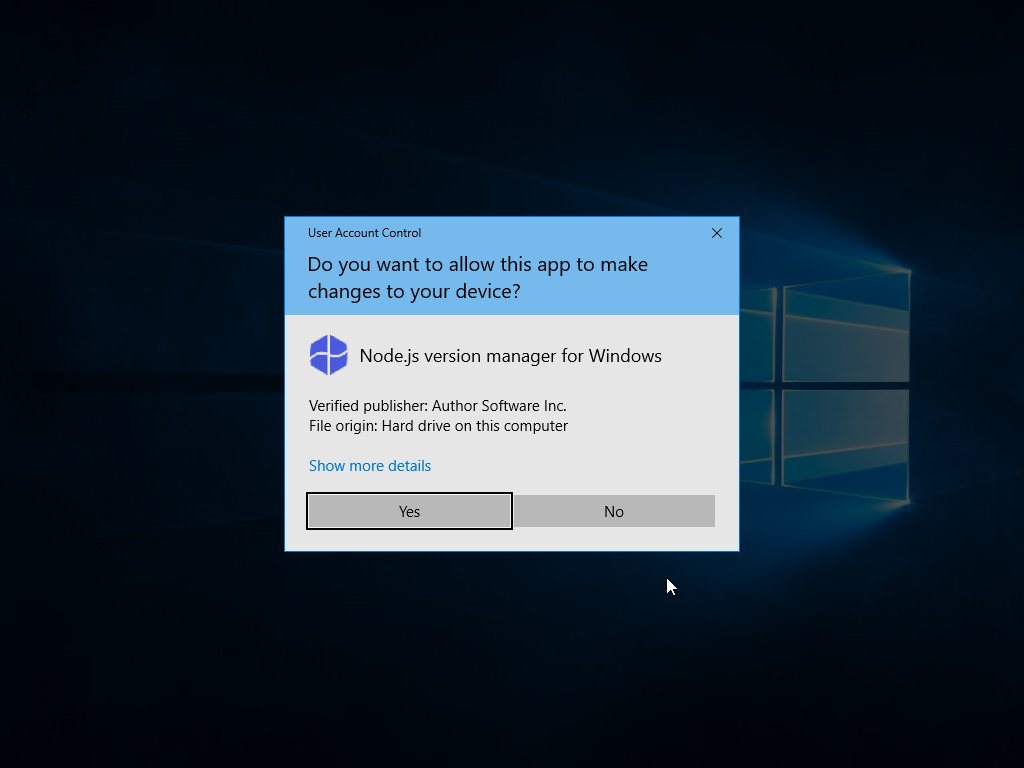
- Accept the agreement and click “Next”.
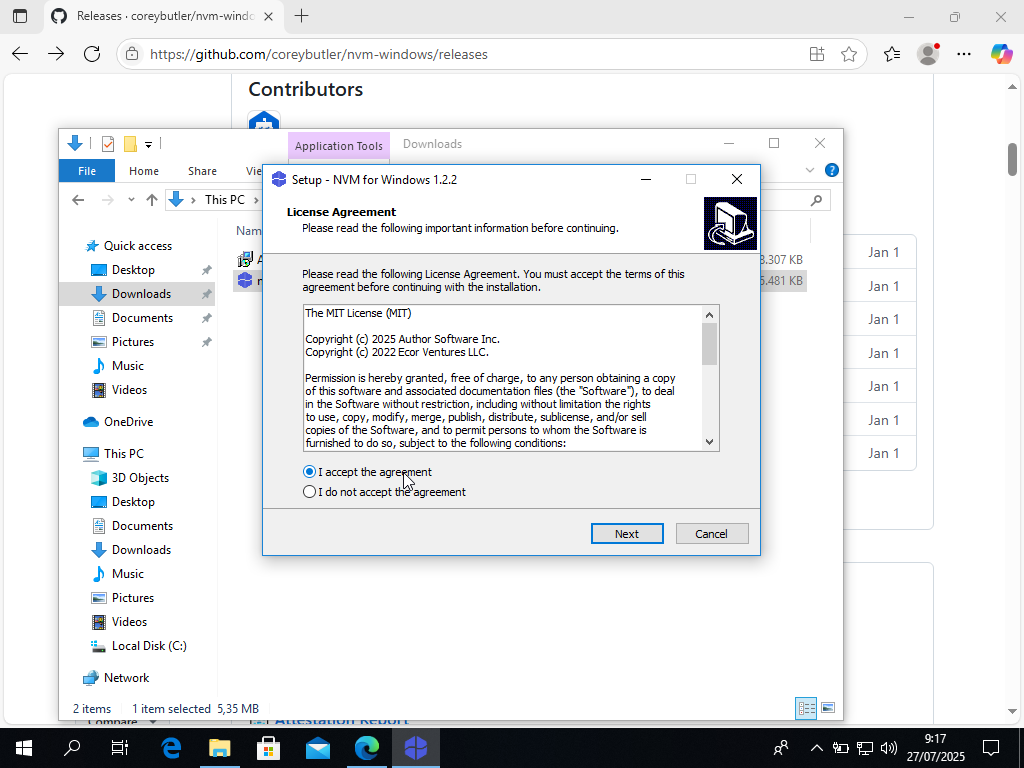
- Use the default installation paths.
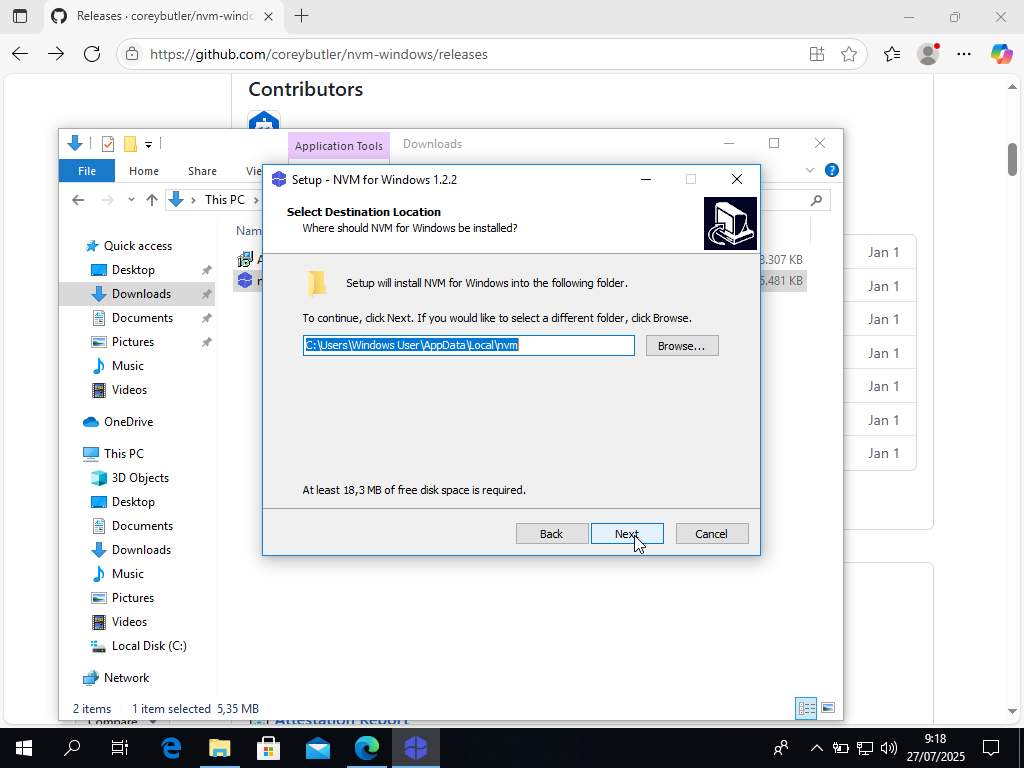
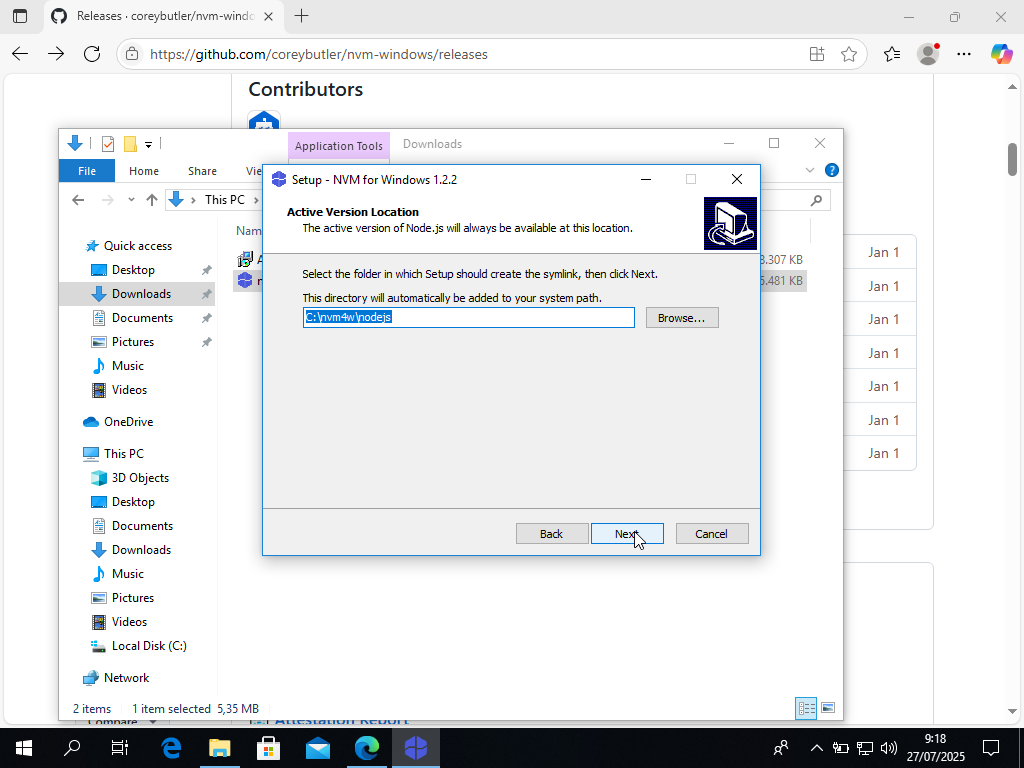
- For notification settings, stick with the default.
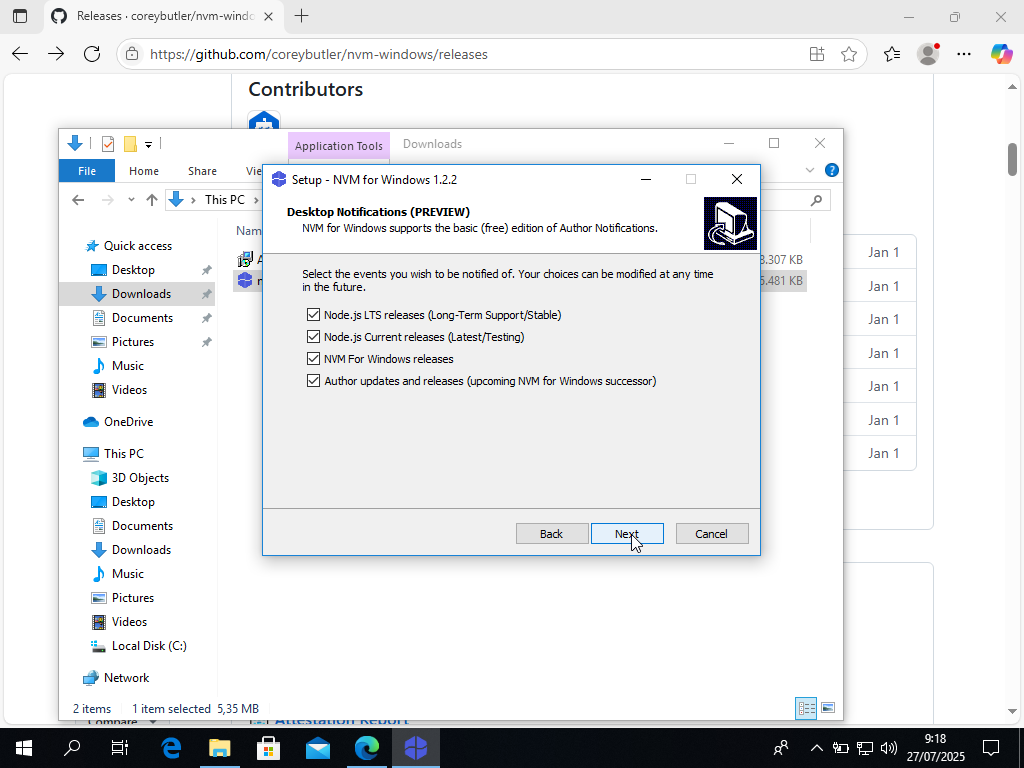
- Wait for installation.
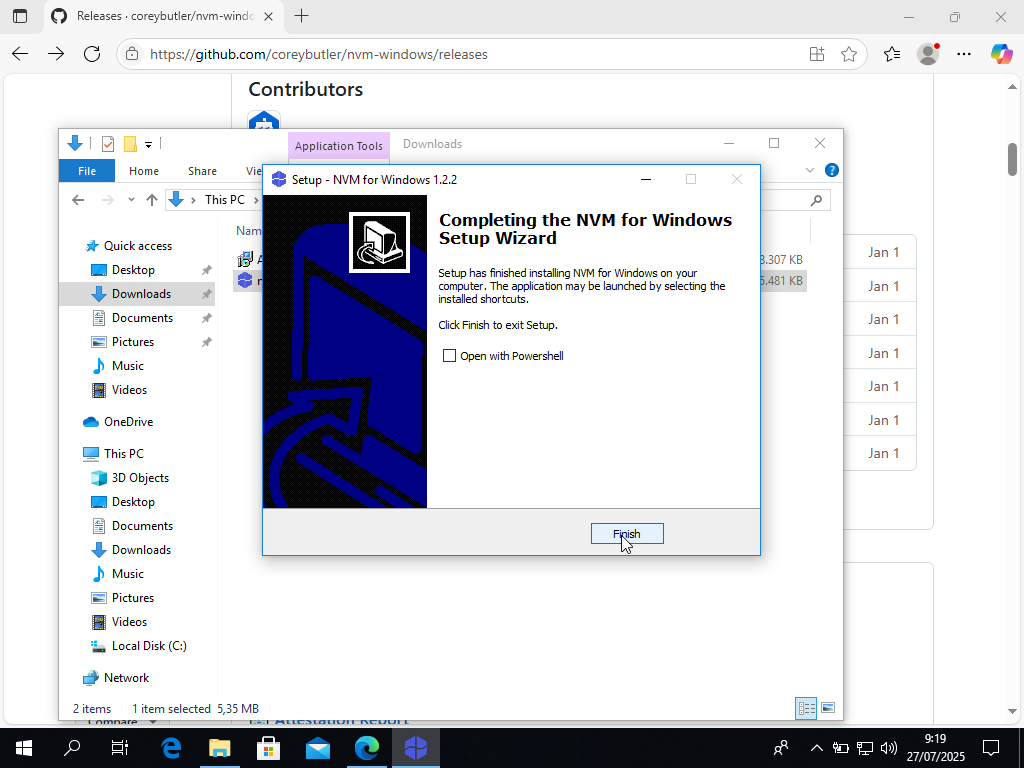
- Finish (don’t tick “Open with PowerShell”).
- Validate by running this command in Command Prompt:
nvm -v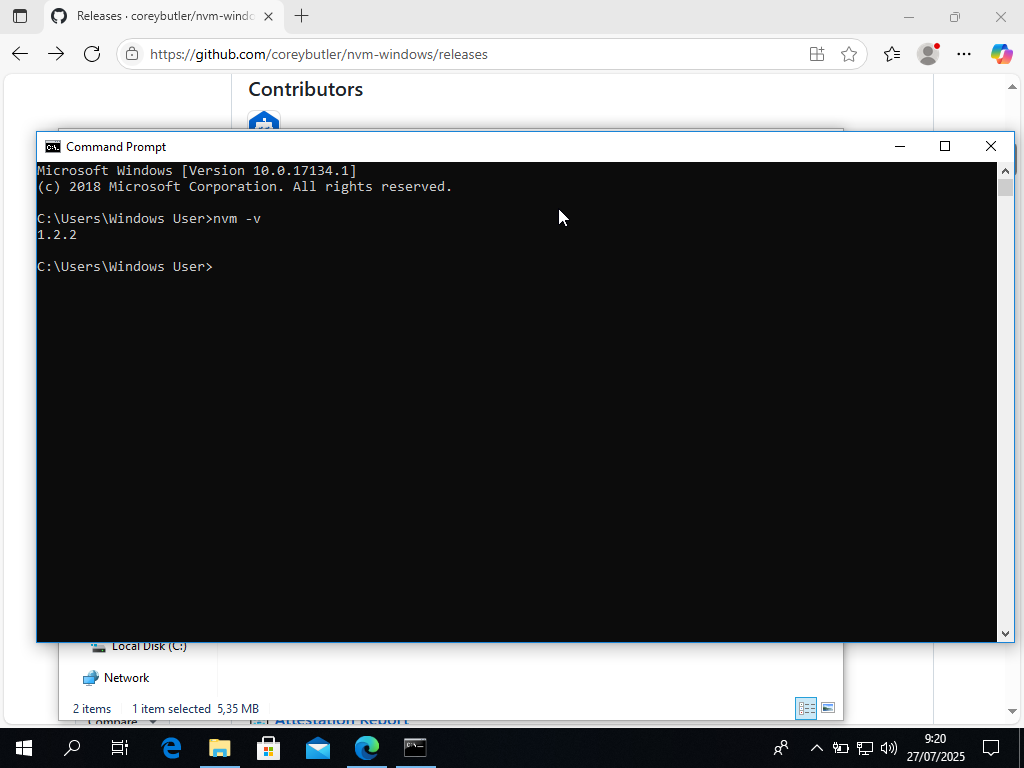
NVM is now installed and ready to use.
Node.js Installation
Now you can install Node.js versions using NVM.
Install Node.js
nvm install <node-version>Example:
nvm install 22.15.0Or for latest LTS:
nvm install lts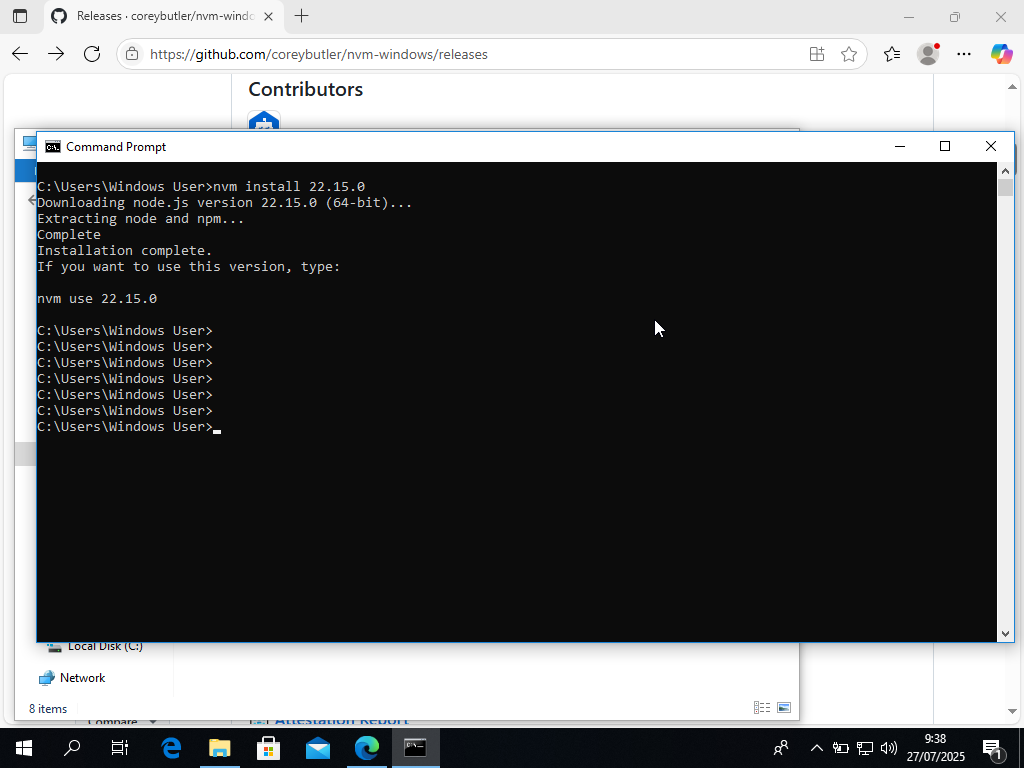
Activate Node Version
nvm use 22.15.0You might encounter an error here:
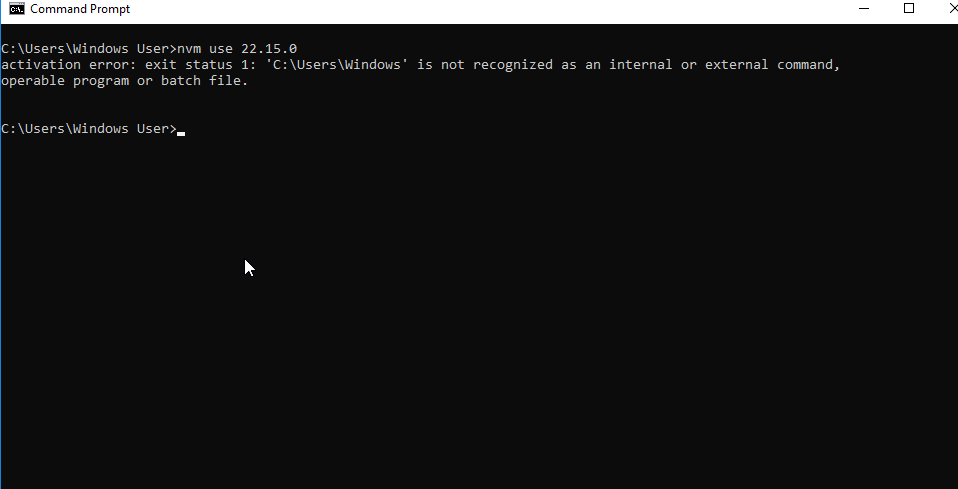
It’s because of spaces in the username path I use e.g., Windows User.
If you don’t have the same problem you could skip the next part and go for the “Reactivate Node.js”
Fix NVM Node.js Activation Error
- Move the
nvmfolder from your earlier default nvm installation path:
to:C:\Users\<space username>\AppData\Local\nvmC:\nvm
If you forgot where the nvm installation take place, type this command in command prompt:
nvm root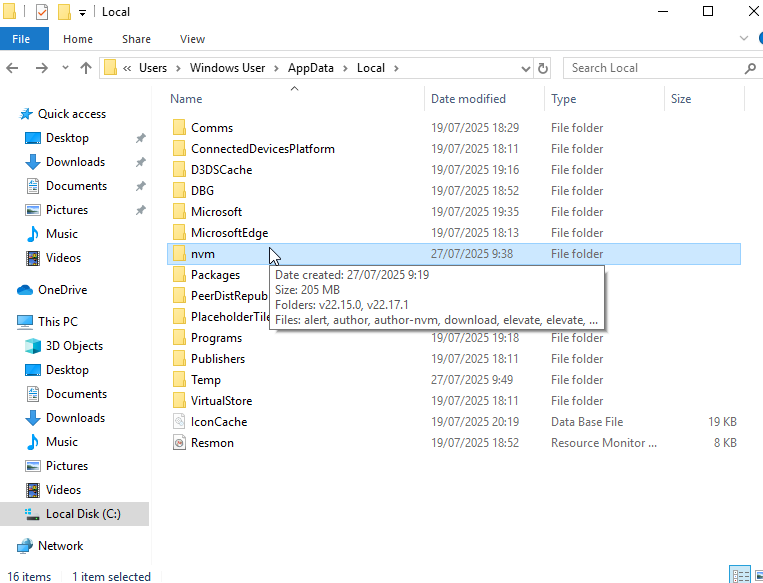
If AppData is hidden, enable “Hidden items” from View tab.
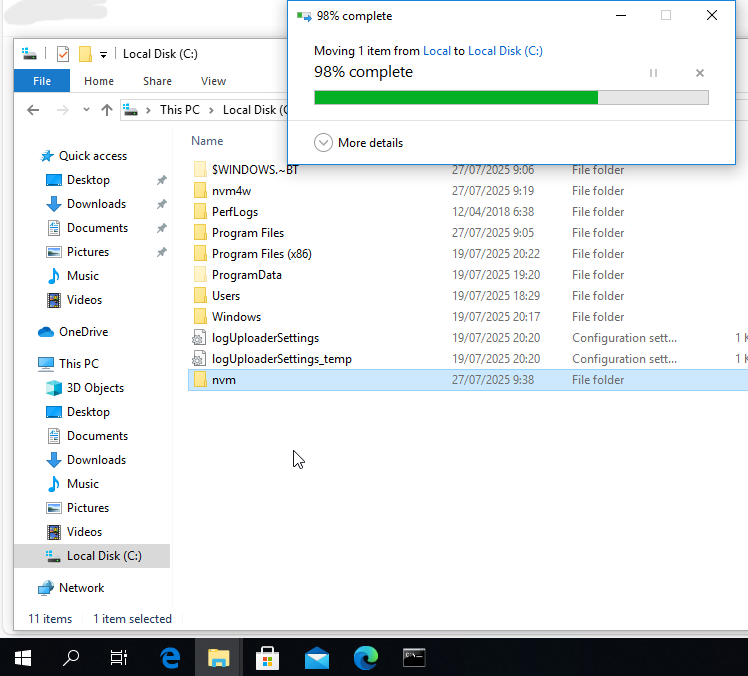
- Edit
C:\nvm\settings.txt:
root: C:\nvm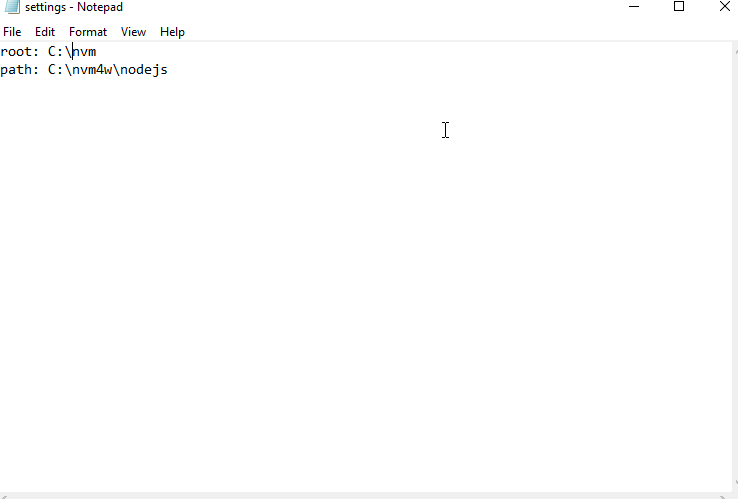
- Open Environment Variables, update all
nvm-related paths toC:\nvm.
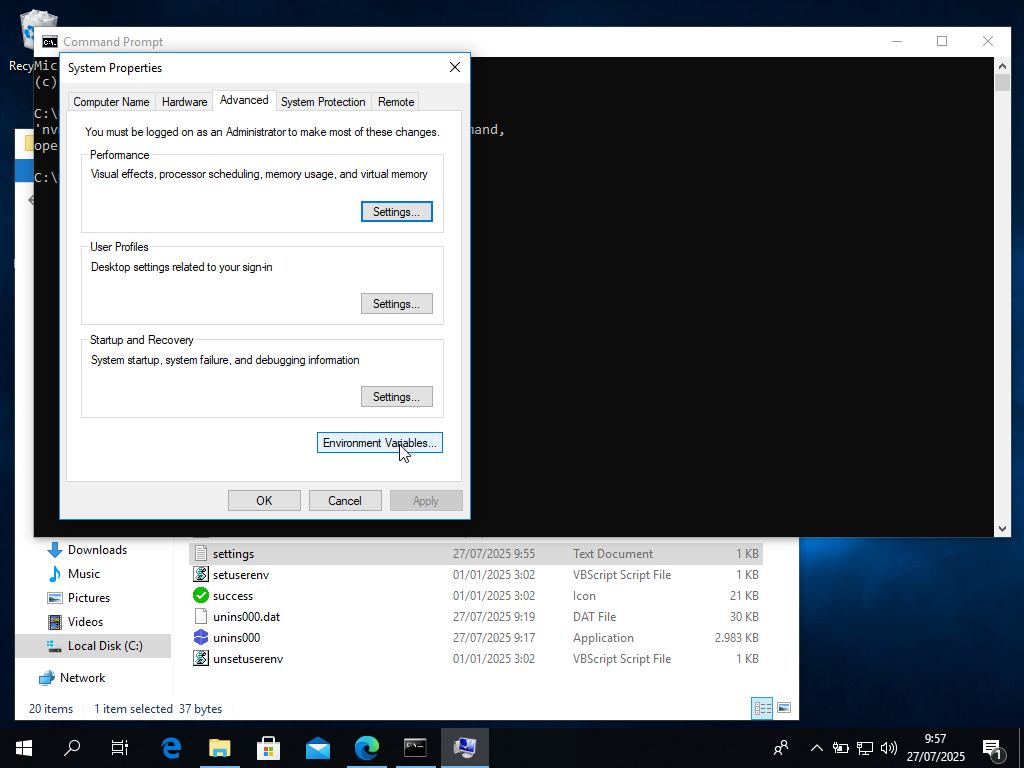
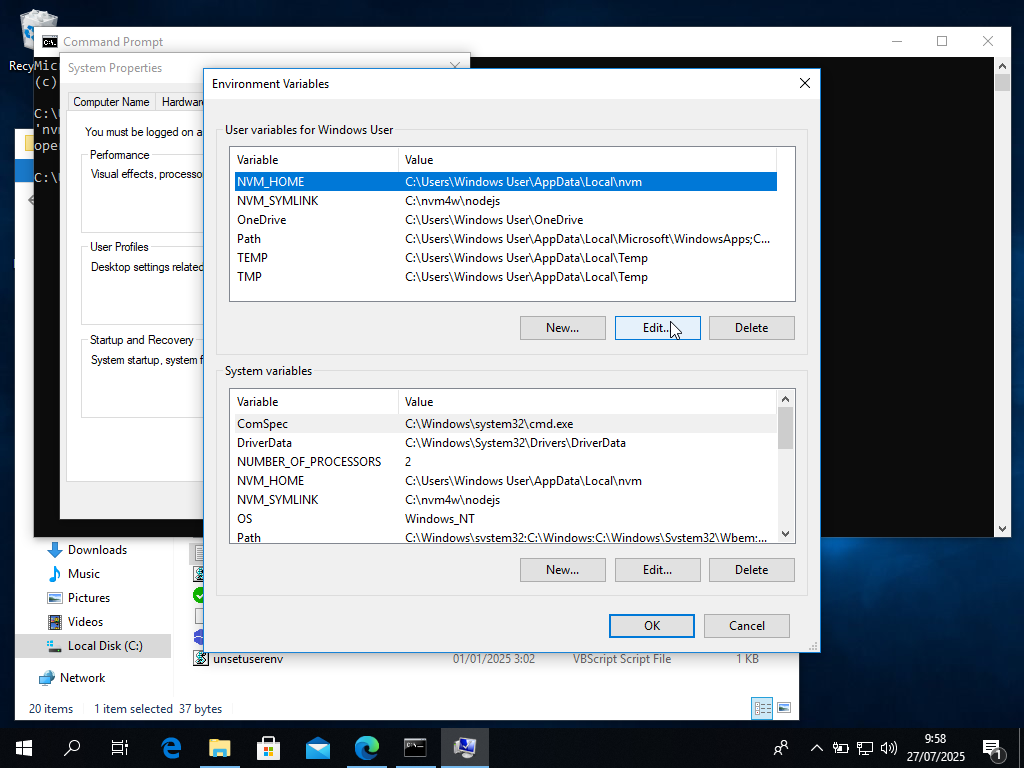
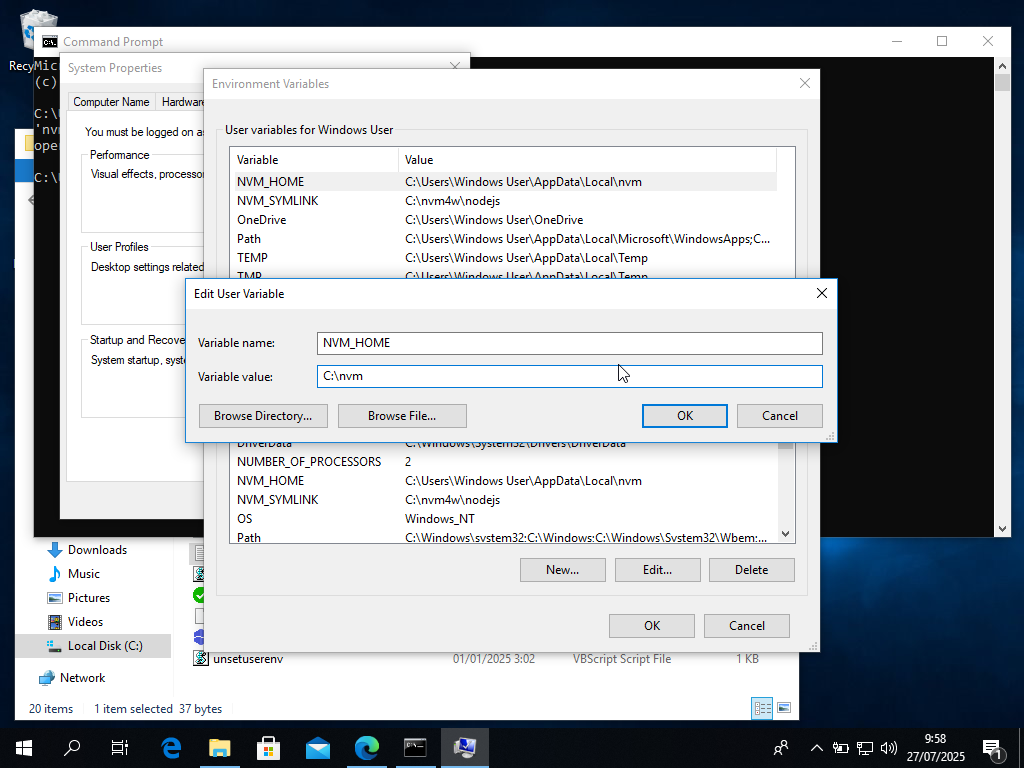
Click OK to save.
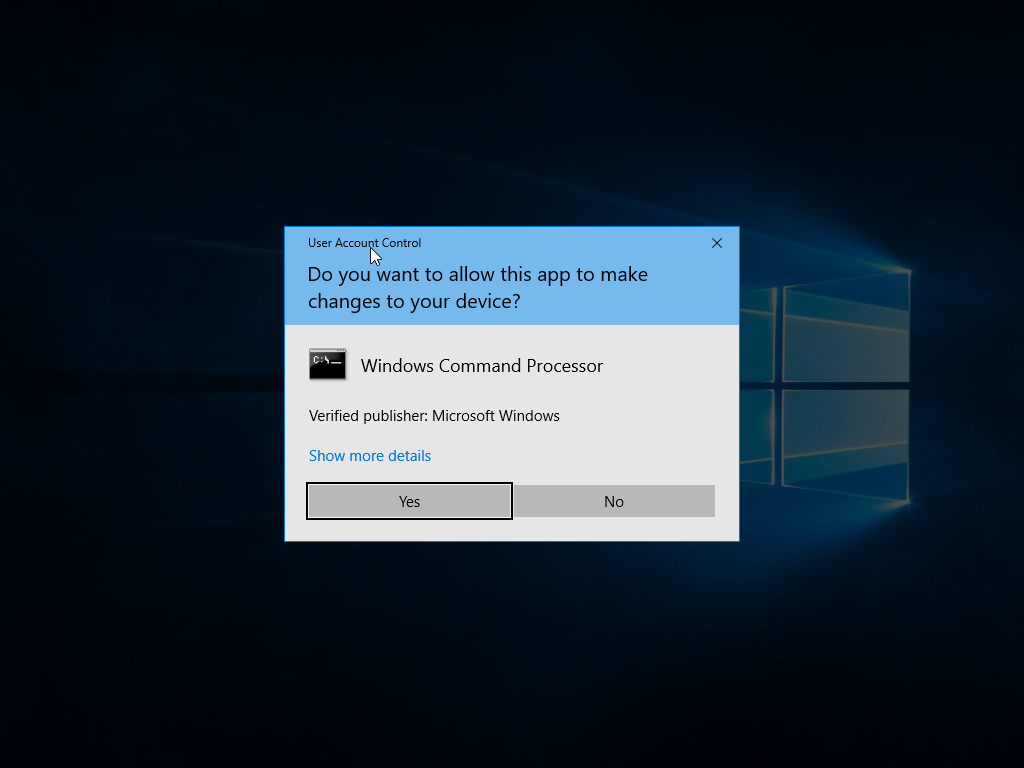
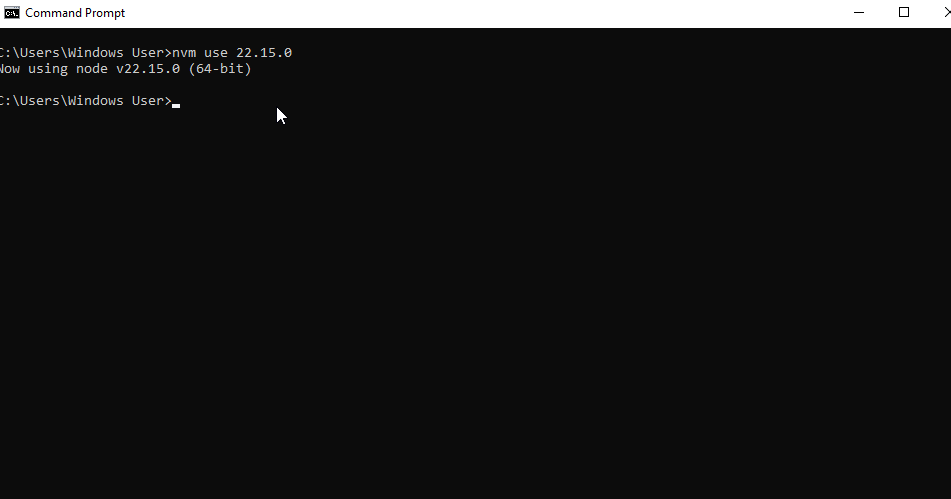
Reactivate Node.js
nvm use 22.15.0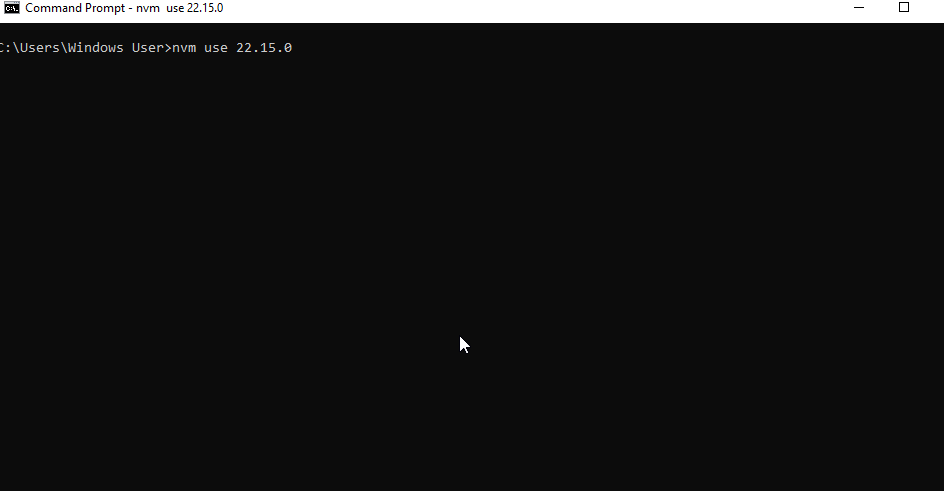
Then check Node.js:
node -v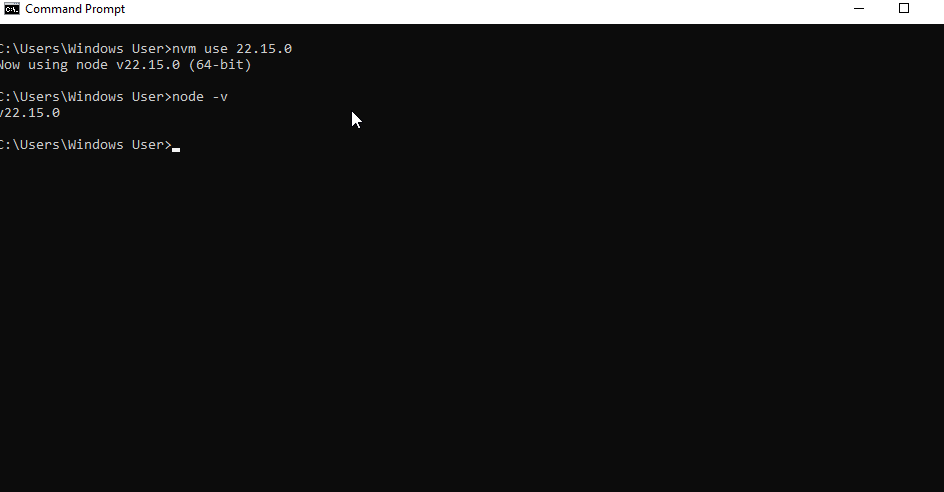
Node.js is now active and ready to use.
Useful NVM Commands
nvm ls                      # list installed Node versions
nvm list available          # show available versions online
nvm use <node-version>      # switch version
nvm alias default <version> # set default version
nvm uninstall <version>     # remove a version
Summary
You now have NVM installed and configured on Windows. You can easily switch between different Node.js versions for your projects. Use nvm list to see installed versions and nvm use <version> to switch between them as needed.